
This article explains how coaches run a live Submaximal Fitness Test (SMFT) in the Firstbeat Sports: Coach app and open the test report from the Coach app.
Before you start
- Your subscription includes the Submaximal testing add-on. Submaximal testing can be added to any subscription tier and is not included by default.
- At least one protocol exists. The pen icon (Manage protocols on Sports Cloud) in the Fitness Testing view opens protocol management in Firstbeat Sports Cloud.
- Athletes wear recording Firstbeat Sports Sensors within range, with well-moistened heart rate (HR) straps. The test starts only for athletes whose Sensor is recording.
Steps
- Select the protocol. Tap Fitness Testing in the left panel and tap the protocol. To run another protocol for other athletes at the same time, tap + next to the protocol tabs and select the protocol.
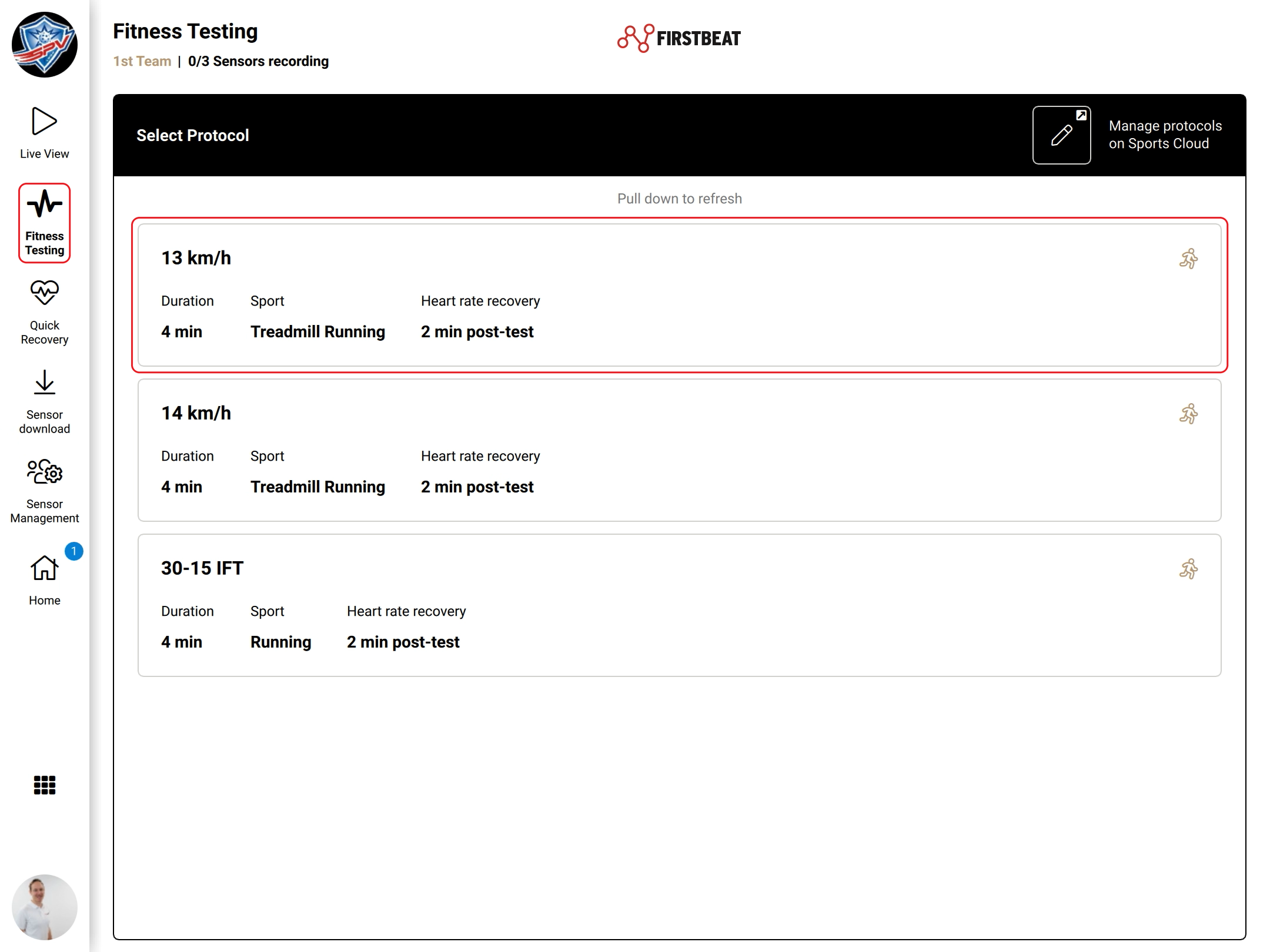
Screenshot: the Fitness Testing view with the Select Protocol list and the pen icon.
- Check the athletes. Athletes with recording Sensors in range are added automatically. Tap Add / remove athletes in the top bar to change the list.
- Start the test. Tap Start all in the bottom-right corner, or tap the green play button in the Actions column to start one athlete.
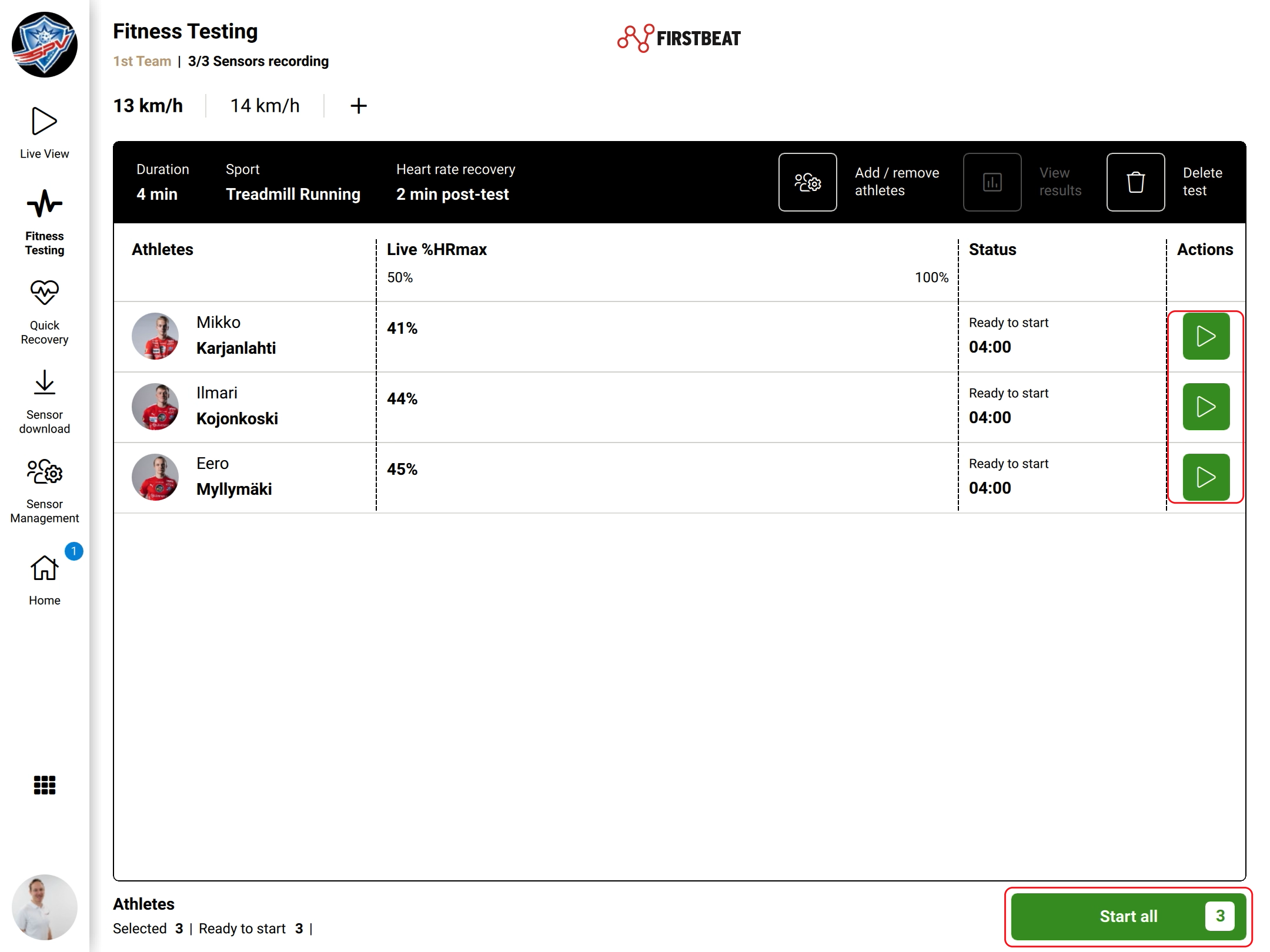
Screenshot: athletes ready to start, with the play buttons and the Start all button.
- Follow the test. The Live %HRmax and Status columns show each athlete's live HR as a percentage of maximum heart rate and the time left. A heart rate recovery phase in the protocol starts automatically after the test phase.
- Download the data. When the view shows Finished - Download Sensor data to view results, download the Sensor data now or after training. The download stops the Sensor measurement, and a new measurement starts soon if the athlete still wears the Sensor.
- Open the report. Tap Results available - View in report or View results. The report opens in Sports Cloud; log in if you have not logged in with this device before.
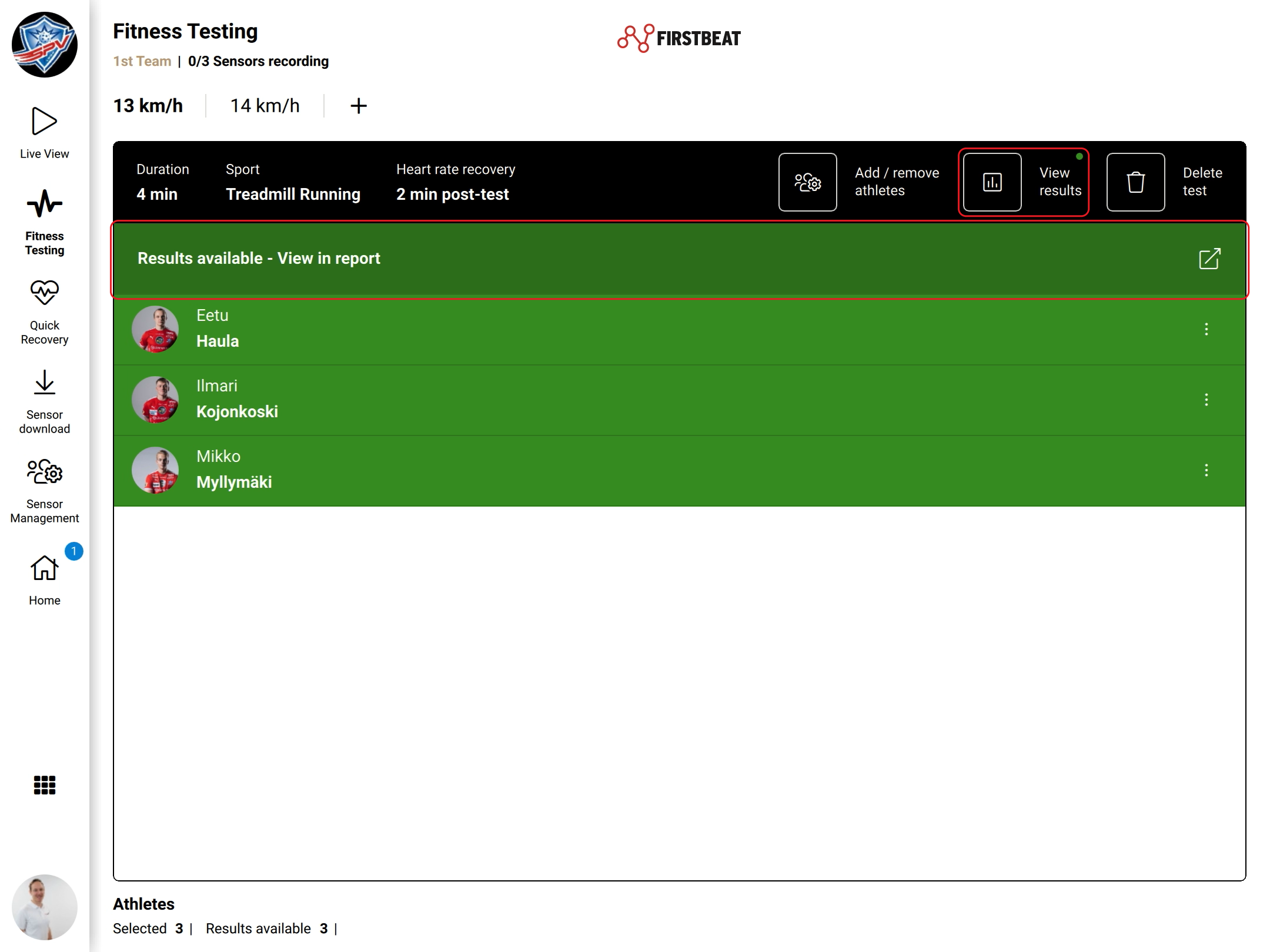
Screenshot: a completed test with Results available - View in report, View results and the Delete test button.
Result
The Submaximal Fitness Test Report opens as an interactive report in Sports Cloud.
Redo or delete a test
- To redo or delete the test, tap Delete test (trash bin icon) in the top bar and select the option.
- To remove one athlete from the test, tap the three dots at the right end of the athlete's row.
Need more help? Ask the Customer Agent chat on this page or email support@firstbeat.com.