
This article explains how coaches perform the Quick Recovery Test (QRT), a three-minute recovery test, for a group of athletes in the Firstbeat Sports: Coach app.
Before you start
- The group QRT in the Coach app requires Sports Premium or Sports Premium+.
- Each athlete wears a recording Firstbeat Sports Sensor. Athletes in a team that is restricted for your coach account appear disabled and cannot be tested.
- Test at the same time before training, in a calm environment, with no physical activity, caffeine or heavy meals before the test.
Steps
- Open the test. Tap Recovery in the left navigation bar and follow the instructions on the screen.
- Start the test. Tap Start all in the bottom-right corner to test all athletes, or tap the green play icon at the right end of an athlete's row to test one athlete. Start all does not restart tests that are already in progress.
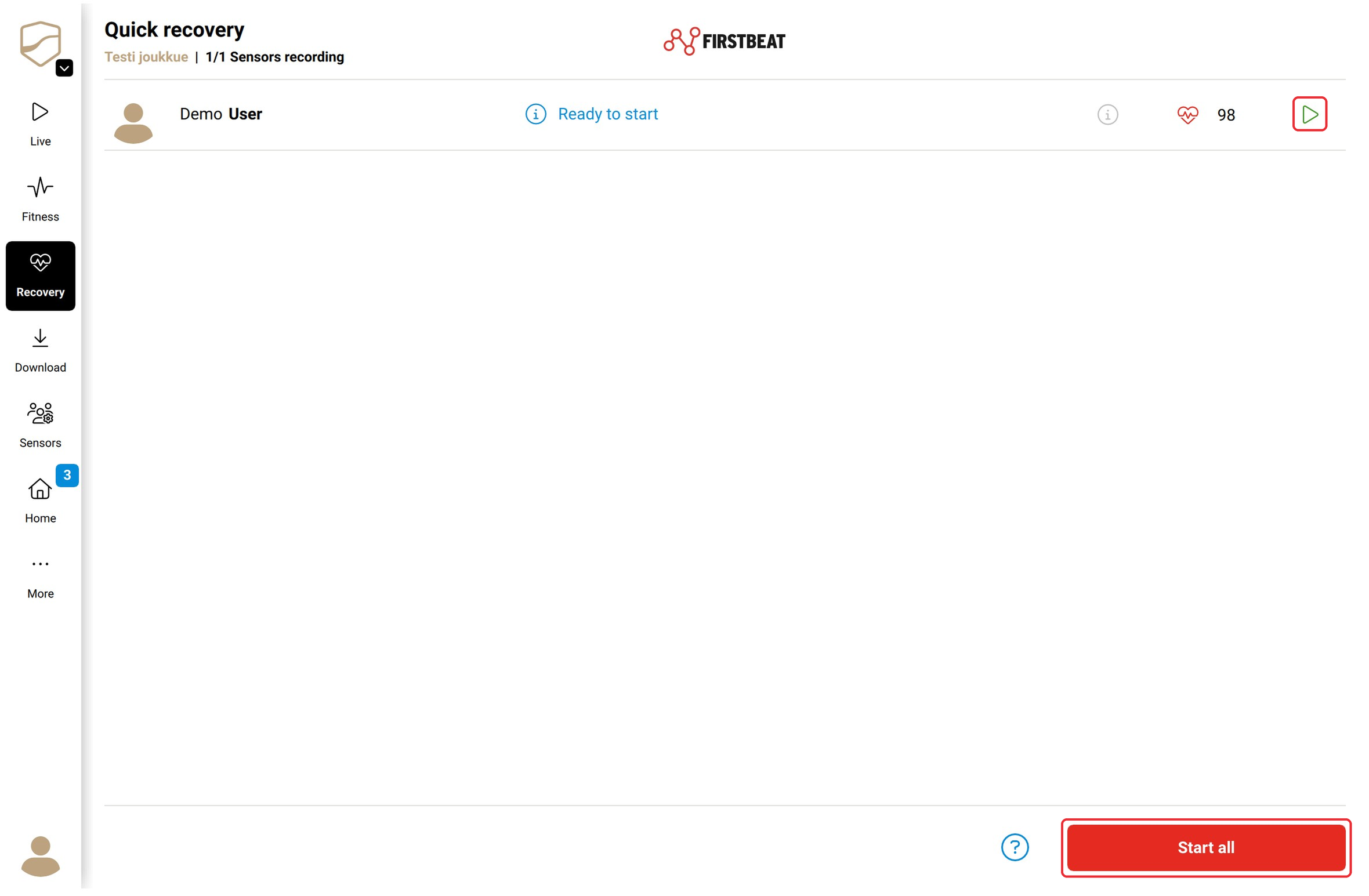
Screenshot: the Quick Recovery view with the green play icon in an athlete row and the Start all button.
- Monitor data quality. After a five-second countdown, the three-minute test starts. If a red warning triangle shows often or for long in an athlete's row, tap the stop button (square icon), check the heart rate (HR) strap and tap the green play icon to restart the test from the beginning.

Screenshot: a QRT in progress with the red warning triangle and the stop button in the athlete row.
- Read the results. Each athlete's QRT result and color-coded feedback appear when the test ends.
- Download the data. Tap Download in the left navigation bar, keep the Sensors within 10 meters of the device and tap Download all.
- Sync to Sports Cloud. Connect the device to the internet, and the Coach app syncs the data to Firstbeat Sports Cloud automatically. QRT data is device-specific, so sync from the device that ran the test.
Result
The QRT results appear in the Coach app right after the test and in Sports Cloud after the Sensor data is downloaded and synced.
Need more help? Ask the Customer Agent chat on this page or email support@firstbeat.com.