
This article explains how to merge (join) two or more measurements into one measurement in Firstbeat Sports Cloud. Merging lets you analyze a session that was recorded in parts, for example the two halves of a game, as one complete measurement.
Before you start
- The measurements must be recorded within 1 hour of each other. Trim & Merge shows only compatible measurements recorded within 1 hour.
- The measurements must be of the same type. To merge a Quick Recovery Test (QRT) with an exercise, first change the Type of the QRT in Measurement settings to an exercise type, for example Training.
- You cannot merge a measurement that has heart rate variability (HRV) data with a measurement that has only heart rate (HR) levels, for example a Garmin measurement without R-R interval (RRI) data.
- Sports Cloud fills the gap between the measurements with zero (non-training) values, so average intensity metrics such as training impulse per minute (TRIMP/min) and Movement Intensity are less accurate for the merged measurement. See How gaps are filled when measurements are merged.
Steps
- Open the measurements list. Log in to Sports Cloud at https://sports.firstbeat.com, select the day and click the Measurements button under the Daily Chart.
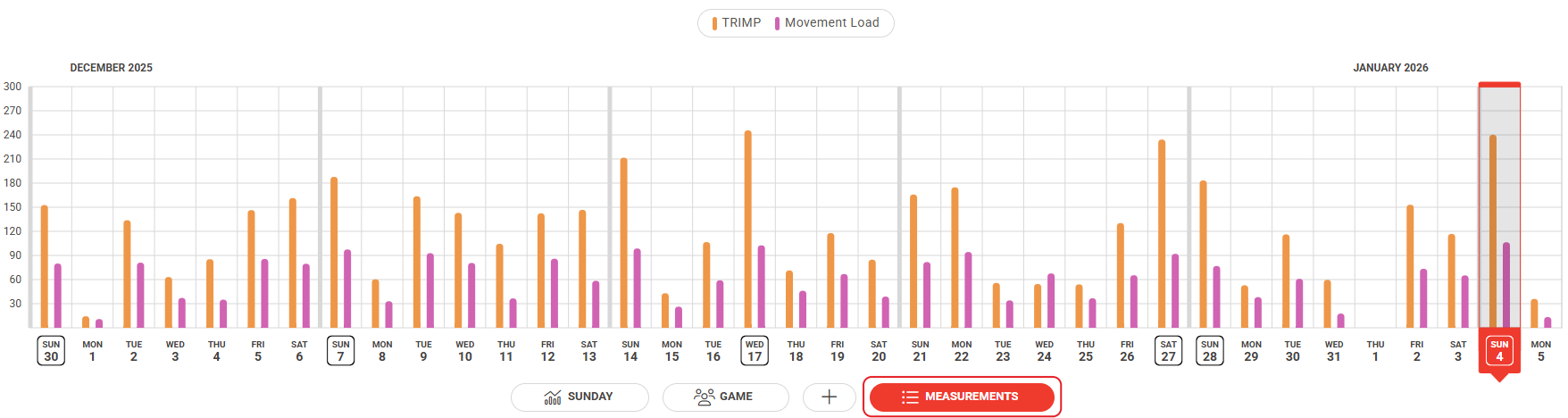
Screenshot: the Daily Chart with the Measurements button below the chart.
Note: You can filter the measurements by team, group/position or athlete in the top-right corner.
- Open Measurement settings. Click the three dots at the right end of one of the measurements and click Measurement settings.
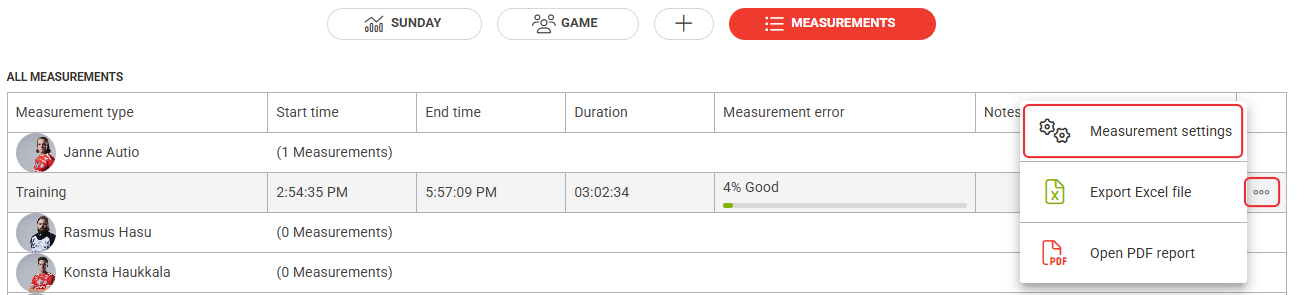
Screenshot: the All measurements list with the three-dot menu open and the Measurement settings option.
- Merge the measurements. Scroll down to Trim & Merge and drag the slider across the gap so that the selection includes the adjacent measurement. To set exact times, adjust Trim start and Trim end under the chart.
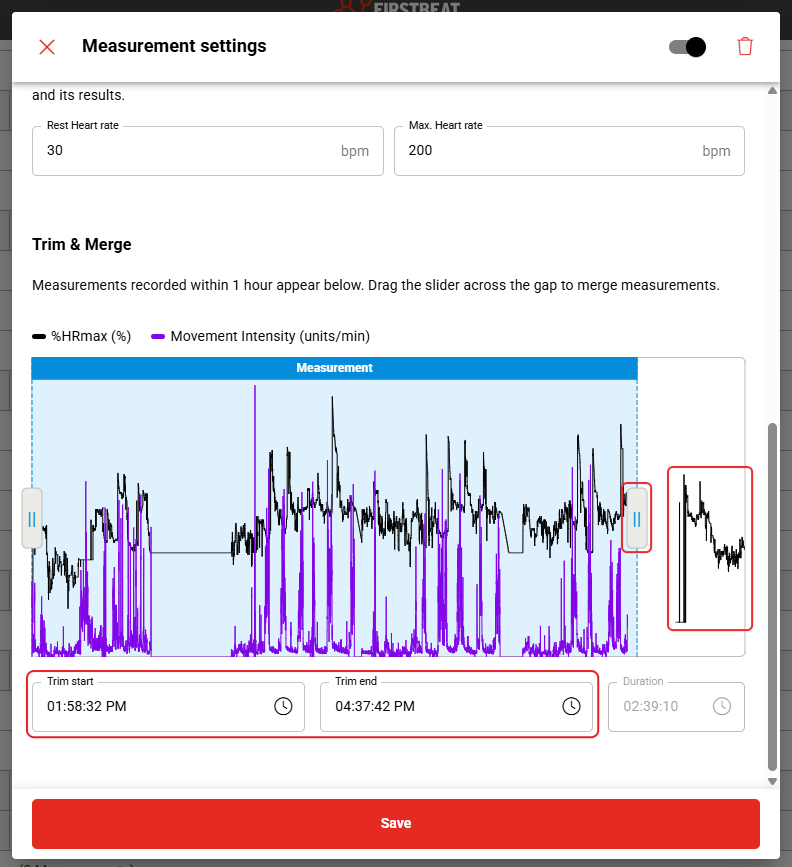
Screenshot: the Trim & Merge section with the selected measurement and an adjacent measurement that can be merged.
- Save. Click Save at the bottom of the dialog.
Result
The Measurements list shows one measurement that covers the time period of the merged measurements.
Need more help? Ask the Customer Agent chat on this page or email support@firstbeat.com.