
This article explains how coaches download measurement data from Firstbeat Sports Sensors to the Firstbeat Sports: Coach app and sync the data to Firstbeat Sports Cloud. You can download the data manually or let the Coach app download it automatically.
Before you start
- Place the Sensors within 10 meters of the device and keep the device within range during the whole download.
- The download from the Sensors needs no internet connection. The sync to Sports Cloud needs an internet connection.
- A blue number on the download button (down arrow icon) in a Sensor's row shows how many measurements are waiting in the Sensor to be downloaded.
- If you use several devices to download faster, sync every device to Sports Cloud. Downloaded data, including Quick Recovery Test (QRT) data, is device-specific and is not synced between devices.
Option 1: Download data from all Sensors
- Open the download view. Tap Download in the left navigation bar.
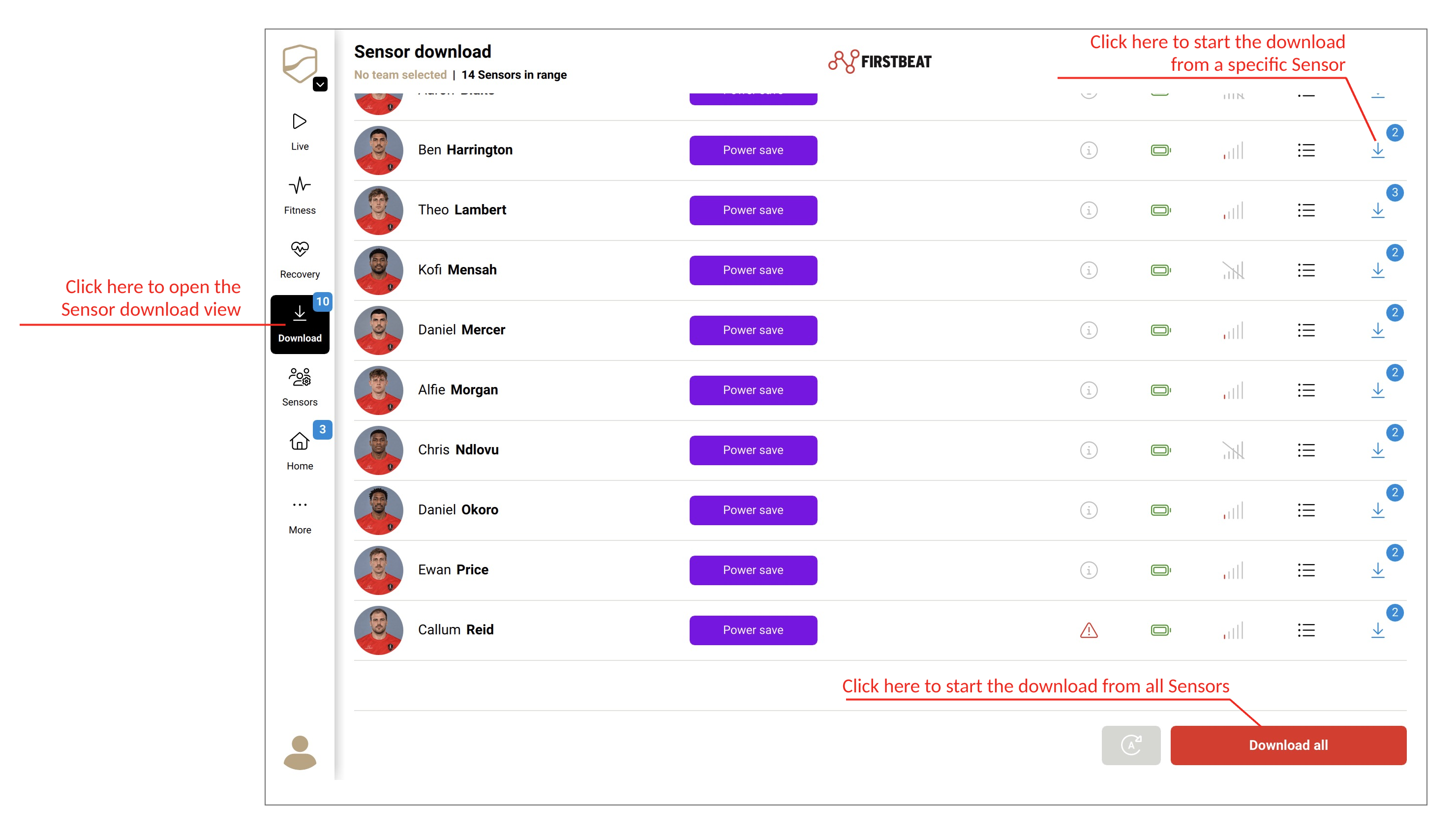
Screenshot: the download view with the download button in each Sensor row, the Download all button and the automatic download button.
- Download. Tap Download all. The Coach app downloads data from five Sensors at the same time and adds the rest of the Sensors to the download queue.
Option 2: Download data from one Sensor
- Open the download view. Tap Download in the left navigation bar.
- Download. Tap the download button (down arrow icon) in the Sensor's row.
To cancel a download, tap the stop button in the Sensor's row.
Option 3: Download data automatically with Automatic Download Mode
- Open the download view. Tap Download in the left navigation bar.
- Turn on Automatic Download Mode. Tap the automatic download button (the A icon with a circular arrow) next to Download all. The message Automatic sensor download is activated. appears at the top of the view.
While Automatic Download Mode is on, the Coach app starts a download automatically when it detects a new measurement on a Sensor that is not recording. The automatic screen lock is disabled while the mode is on.
Video: How to use Automatic Download Mode in the Coach app.
Result
The Coach app syncs the measurements to Sports Cloud automatically when the device is online. To sync immediately, tap More (…) in the navigation bar and tap Sync now.
The number on the Loaded Measurements button (list icon) in each Sensor row shows the sync status:
- Blue number: measurements downloaded to the device and waiting to be synced to Sports Cloud.
- Green number: measurements synced to Sports Cloud today.
If a Sensor has measurements waiting to be synced, the blue number is shown even if other measurements were synced earlier that day. For details, see Loaded Measurements view in the Coach app.
Need more help? Ask the Customer Agent chat on this page or email support@firstbeat.com.