
The Bar Chart view in the Firstbeat Sports: Coach app is a Live view format that shows each athlete's current value of a selected metric as a horizontal bar, so coaches can compare athletes during a team session. This article also explains how to compare the live values with typical values for a sport or with each athlete's previous sessions.
Open the Bar Chart view
- Open Live view and select Bars in the left-hand navigation. The other Live view formats are Tiles, Lines and Laps (Real-Time Lap Management, Sports Premium+).
- Choose a metric in the Metric panel on the right, for example training impulse (TRIMP).
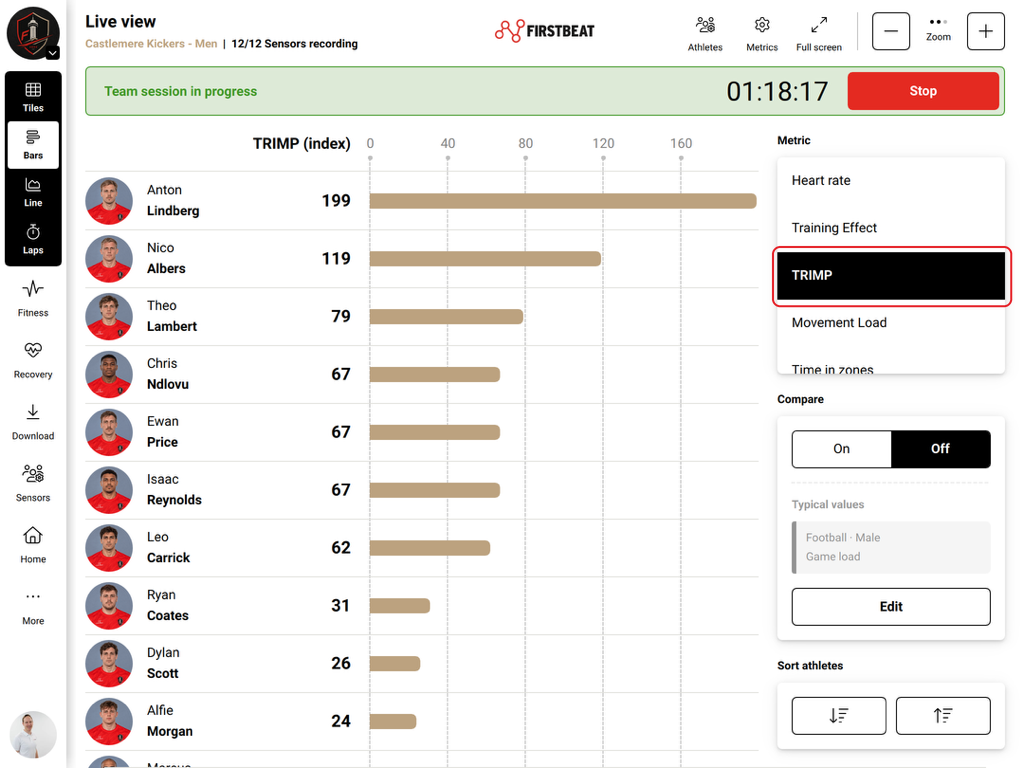
Screenshot: the Bar Chart view on an iPad with TRIMP selected and comparison turned off.
Compare live data with reference values
To turn on a comparison, select On in the Compare panel, then Edit. To remove the comparison, switch Compare to Off. The Compare panel shows the active comparison.
Option 1: Compare with typical values for a sport
- Choose the typical values. Under Typical values of selected sport, choose a load level (Low load, Moderate load, High load or Game load). Then select the sport and the female or male reference group. Reference values are available for several sports, including American Football, Basketball, Field Hockey, Football, Ice Hockey, Rugby Union and Tennis.
- Return to the Bar Chart view. The reference values appear as a highlighted range behind the athletes' current values.
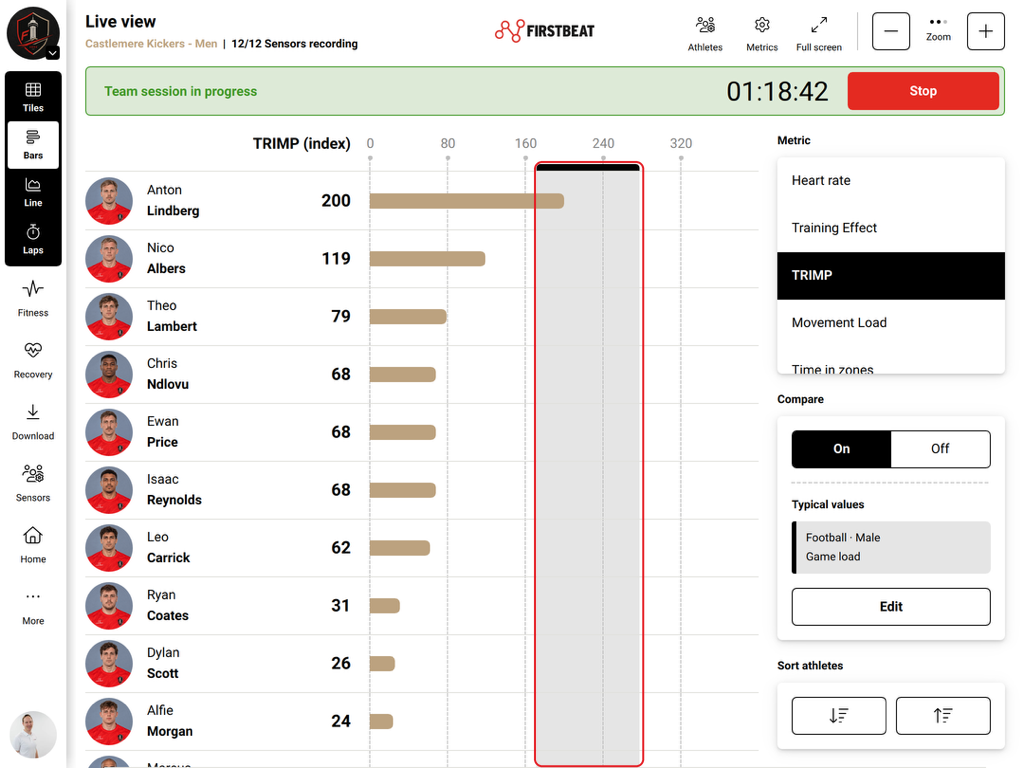
Screenshot: training impulse (TRIMP) values compared with the typical Football, Male, Game load reference range.
Option 2: Compare with athlete history
- Choose the history. Under History per athlete, choose Show all session data or Show specific session data. For specific session data, select the session title and narrow the comparison with the date range and session-type filters where available.
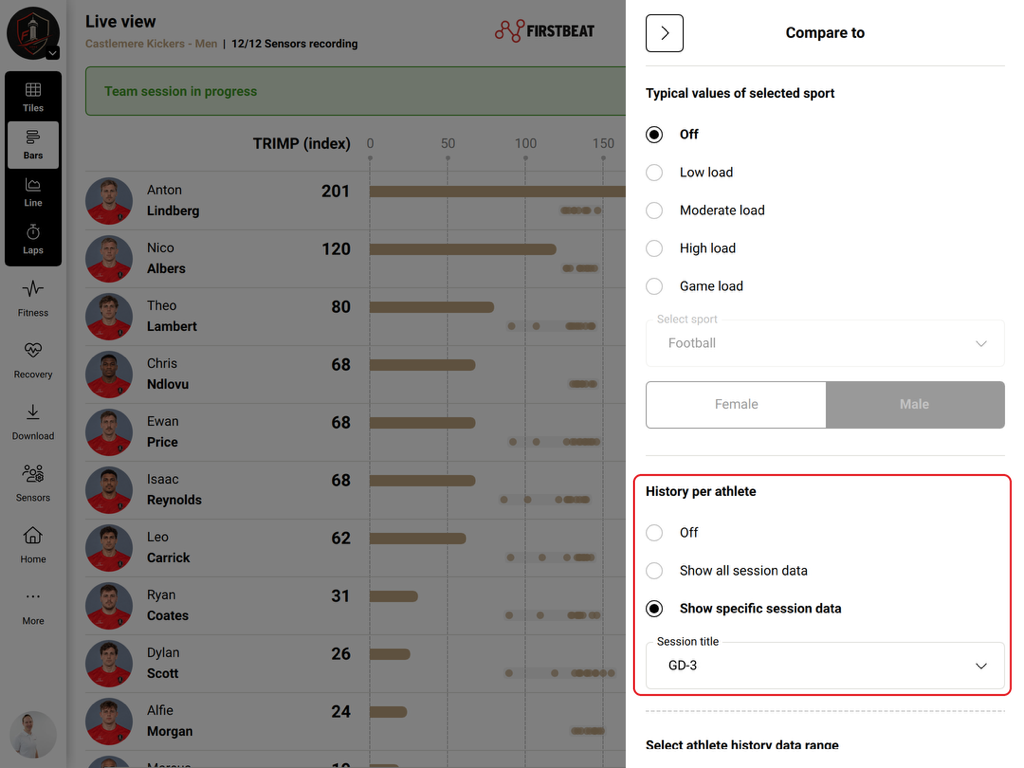
Screenshot: the Compare to panel with athlete history set to a specific session title.
- Return to the Bar Chart view. Dots next to each athlete's bar show the values from the selected previous sessions.
Other controls
- Athletes at the top of Live view chooses which athletes are shown.
- Full screen at the top expands the view.
- Sort athletes in the right-hand panel changes the athlete order.
- During a team session, the session timer and the Stop button appear at the top of Live view.
Need more help? Ask the Customer Agent chat on this page or email support@firstbeat.com.