
This article explains how coaches and athletes can upload Firstbeat Bodyguard 3 (BG3) measurement data to Firstbeat Sports Cloud for stress and recovery analysis.
Before you start
- You need Sports Premium or Sports Premium+, and the stress and recovery feature must be enabled on your customer account. If UPLOAD FROM BODYGUARD 3 is missing from the upload menu, the feature is not enabled: contact your account manager. If the feature should already be in your plan, contact Firstbeat Support.
- You need the measurement file with the .gz extension, downloaded from the BG3 device with the Firstbeat Bodyguard 3 Exporter desktop application.
- You can upload one measurement for one athlete at a time.
Steps
- Open the upload dialog. Log in to Sports Cloud at https://sports.firstbeat.com, click the upload icon (a cloud with an arrow) in the top-right corner and select UPLOAD FROM BODYGUARD 3.
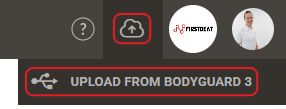
Screenshot: the upload icon menu in the top-right corner of Sports Cloud with the UPLOAD FROM BODYGUARD 3 option.
- Select the athlete and the file. In the Upload measurement from Bodyguard 3 dialog, select the athlete in the Select the athlete to add the measurement for list. Click SELECT FILE... and select the .gz file.
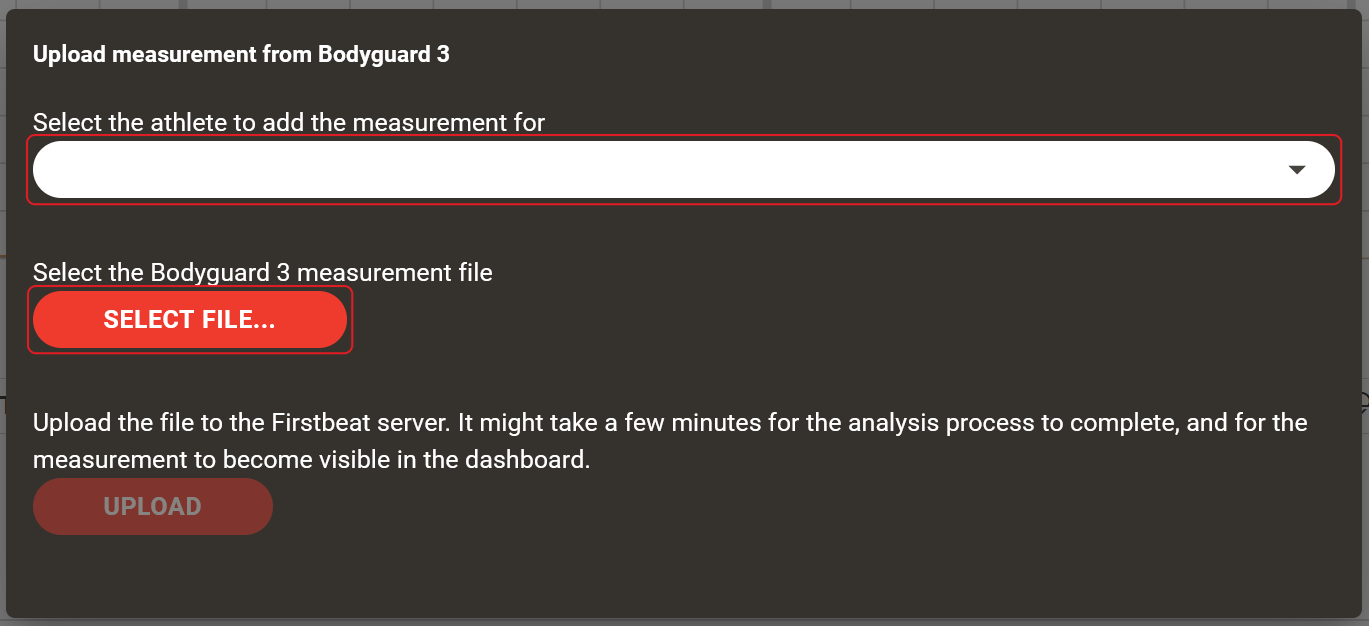
Screenshot: the Upload measurement from Bodyguard 3 dialog with the athlete list and the SELECT FILE... and UPLOAD buttons.
- Upload the file. Click UPLOAD and wait for the upload and the analysis to finish. The analysis might take a few minutes.
Result
The stress and recovery report is available in Sports Cloud, and the measurement is visible on the dashboard.
Need more help? Ask the Customer Agent chat on this page or email support@firstbeat.com.