
This article explains how coaches send log files from the Firstbeat Sports: Coach app to Firstbeat Support when the Coach app is not working as expected. Uploading log files does not create a support ticket, so also submit a ticket that describes the problem.
Before you start
- You are signed in to the Coach app.
- The device has a stable Wi-Fi or mobile data connection.
- You know what happened, when it happened and any error message you saw.
Steps
- Open Support. In the Coach app, open ... More and select Support.
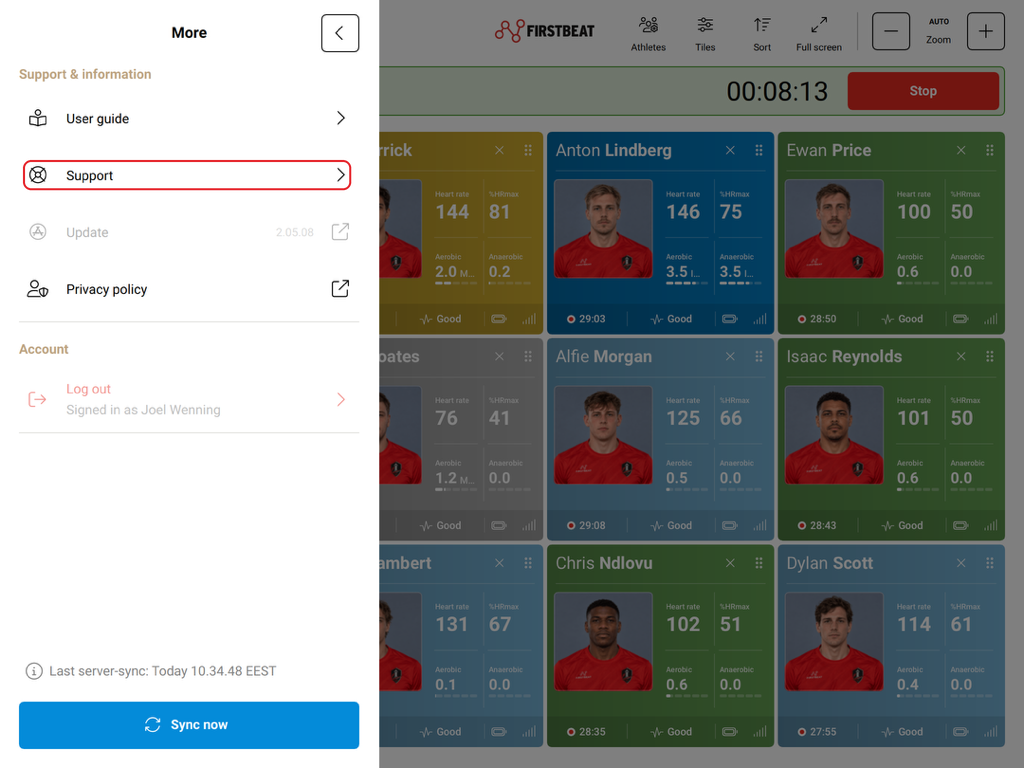
Screenshot: the More menu with Support under Support & information.
- Upload the log files. Select Upload log files, enter a brief description of what happened, select Upload and wait for the upload to finish. If the upload does not complete, check the connection and try again.
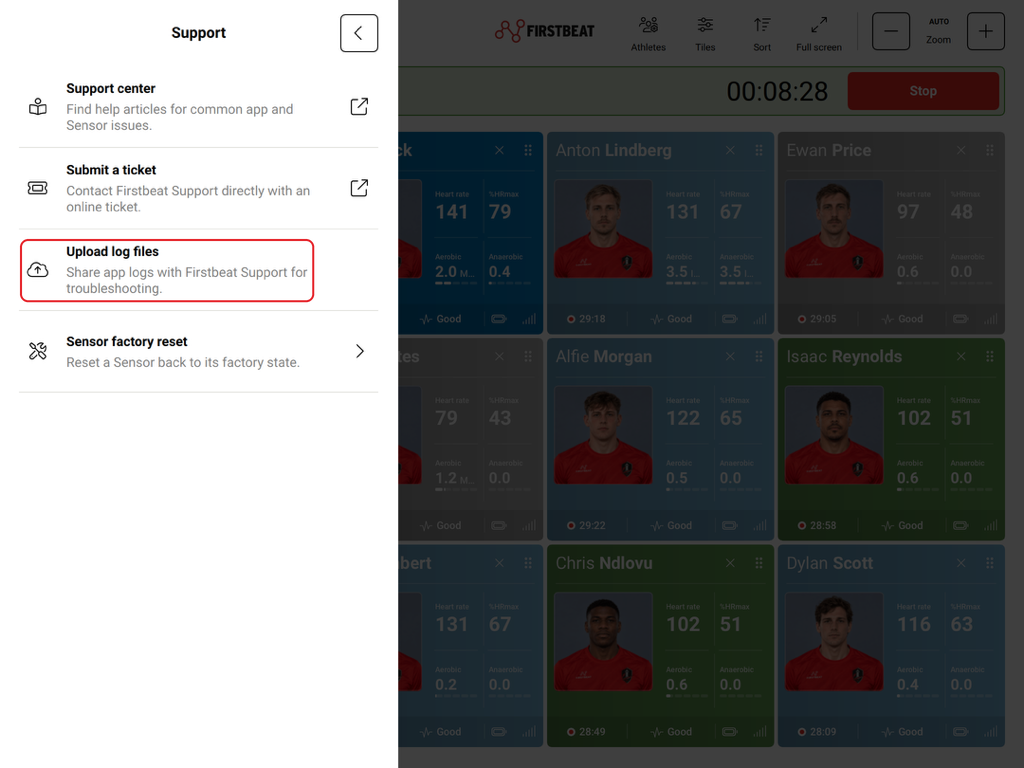
Screenshot: the Upload log files dialog with the problem description field and the Upload button.
- Submit a ticket. Return to Support and select Submit a ticket. Describe the problem and say that you uploaded log files from the Coach app, or that the upload failed.
Result
Firstbeat Support receives the log files and your ticket, and contacts you about the problem.
Need more help? Ask the Customer Agent chat on this page or email support@firstbeat.com.