
This article explains how athletes send log files from the Firstbeat Sports: Athlete app to Firstbeat Support when the Athlete app is not working as expected. Uploading log files does not create a support ticket, so also submit a ticket that describes the problem.
Before you start
- The phone has a stable internet connection.
Steps
- Log in. Log in to the Athlete app with your username and password.
- Open Support. Press the Menu button in the top-left corner of the home screen and press SUPPORT.
- Upload the log files. Press UPLOAD LOG FILES and wait until the upload finishes. If the upload fails, check that the internet connection is strong and stable and try again.
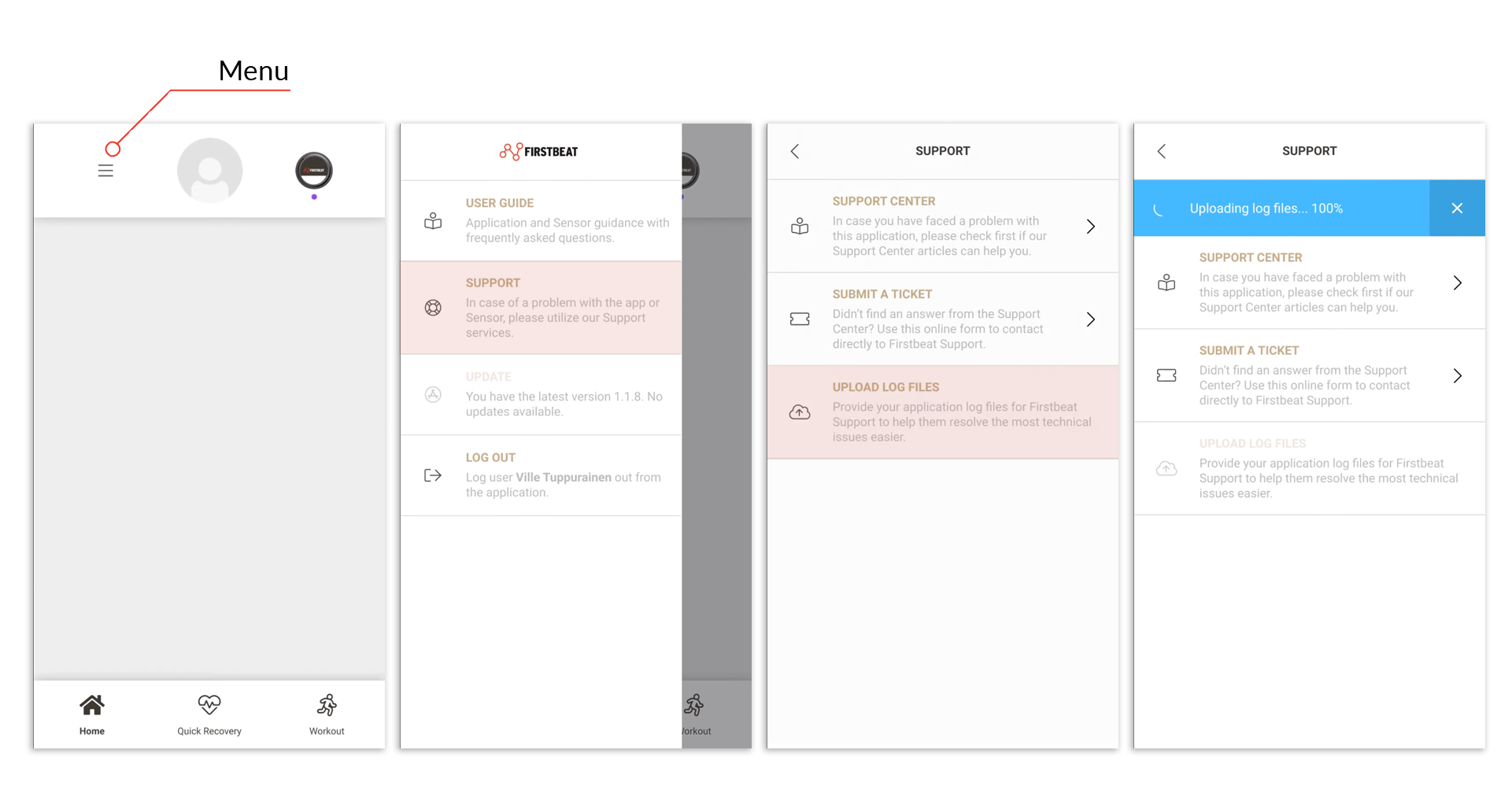
Screenshot: the Menu button, the SUPPORT view with UPLOAD LOG FILES and the "Uploading log files... 100%" banner.
- Submit a ticket. Return to SUPPORT and press Submit a ticket. Describe the problem and say that you uploaded log files from the Athlete app.
Result
The Athlete app notifies you when the log files have been sent successfully. Firstbeat Support receives the log files and your ticket, and contacts you about the problem.
Need more help? Ask the Customer Agent chat on this page or email support@firstbeat.com.