
This article explains how coaches record a team session in the Firstbeat Sports: Coach app. A team session groups the athletes' measurement data from one training session, game, race or rehabilitation activity.
Before you start
- The athletes are wearing their Firstbeat Sports Sensors, and the Sensors are recording.
- Automated team session reports are sent to coaches for sessions started in Live view in the Coach app, after the data has synced to Firstbeat Sports Cloud.
Steps
- Start the session. When training starts, open Live view and tap Start in the team-session bar at the top of the screen. The bar changes to Team session in progress and shows the elapsed time.
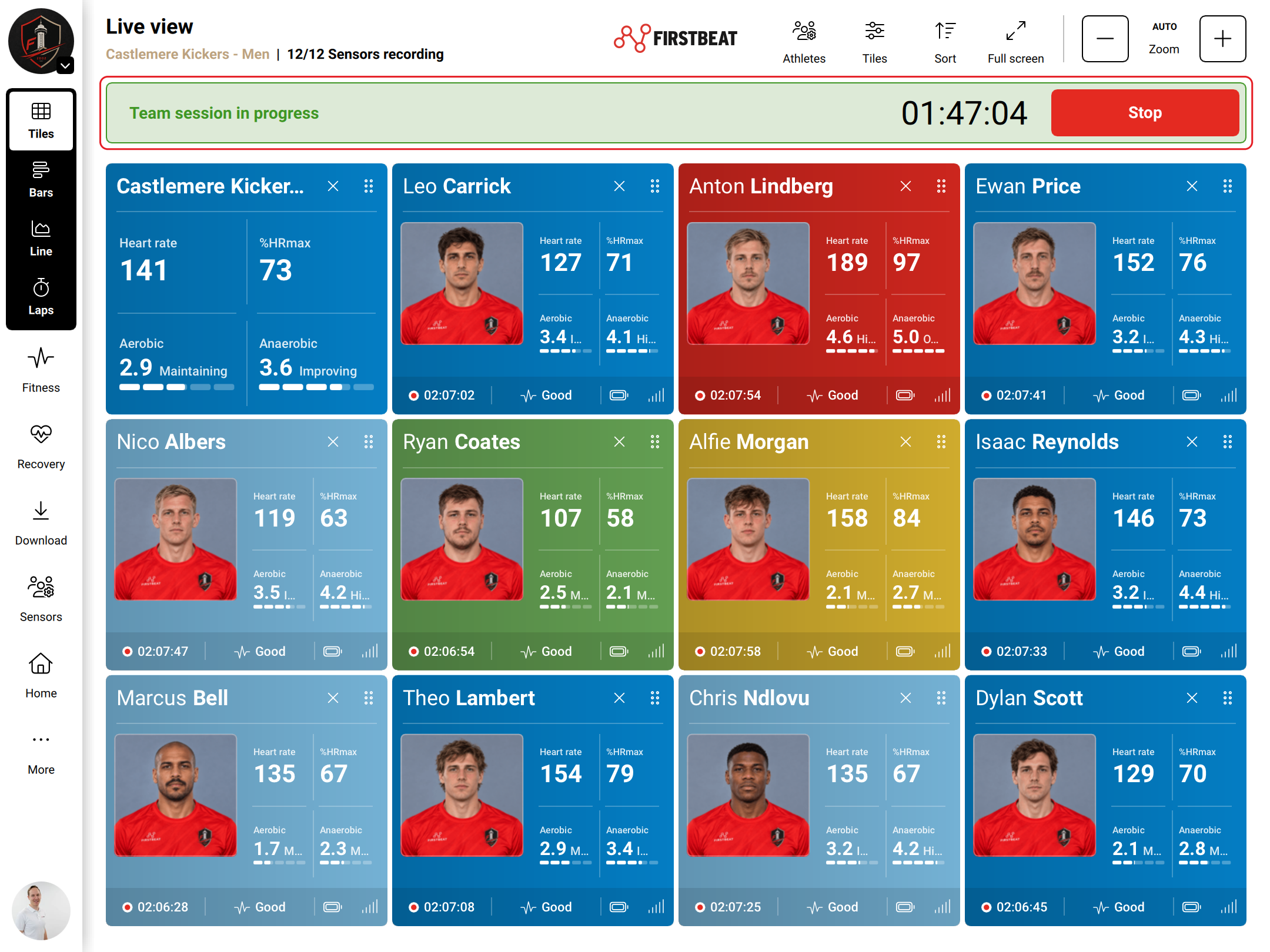
Screenshot: Live view with a team session in progress and the Stop button in the team-session bar.
- Stop and save the session. When training ends, tap Stop and Save team session. Discard creates no session but does not delete Sensor measurements.
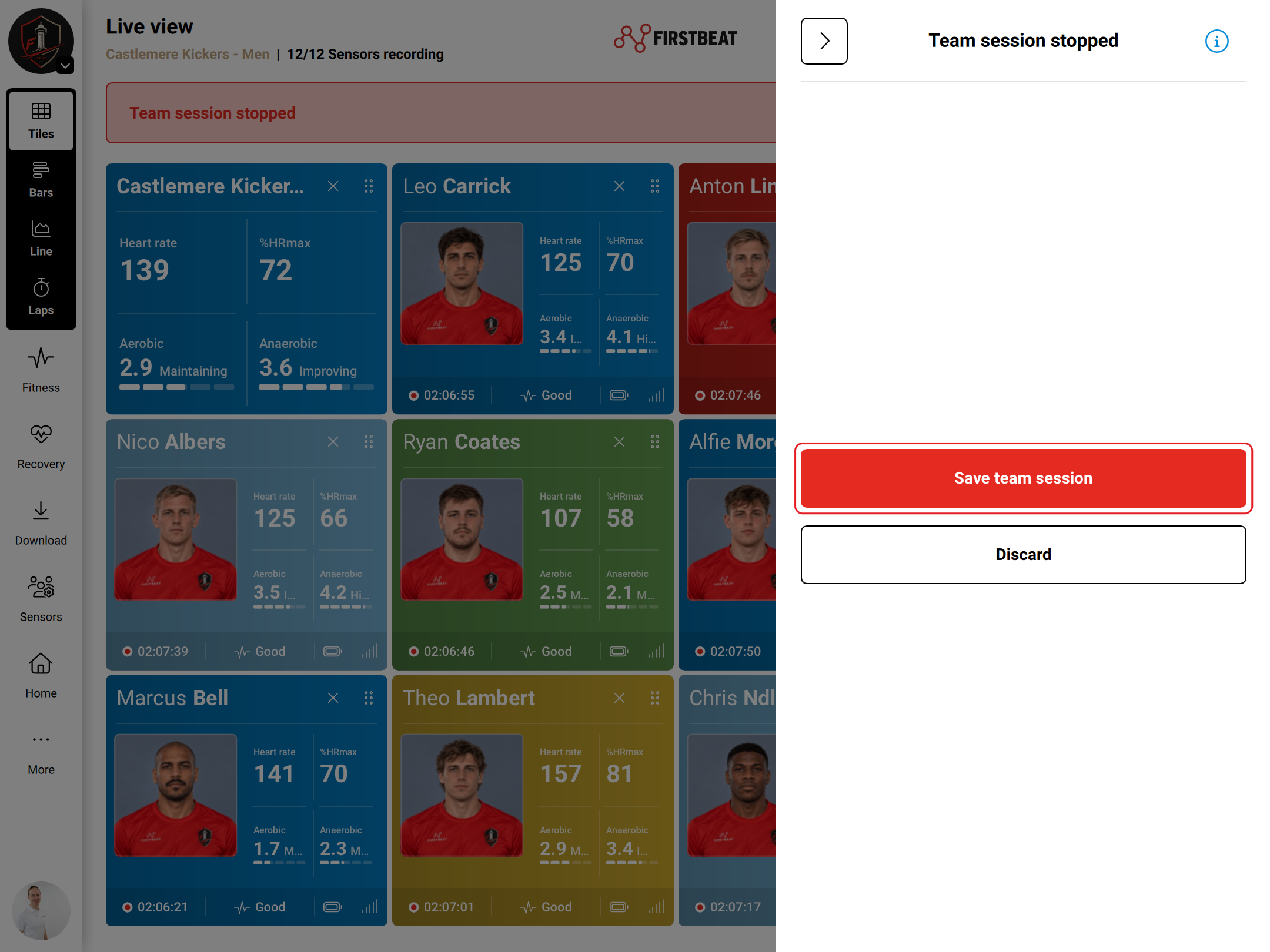
Screenshot: the team session stopped panel with the Save team session and Discard buttons.
- Set the session details. Check the Team, Time period, Title, Sport, Type (Training, Game, Race or Rehab), Notes (up to 250 characters) and Participated athletes, then tap Done. The session can be up to 12 hours long and only within the period for which athlete measurement data is available.
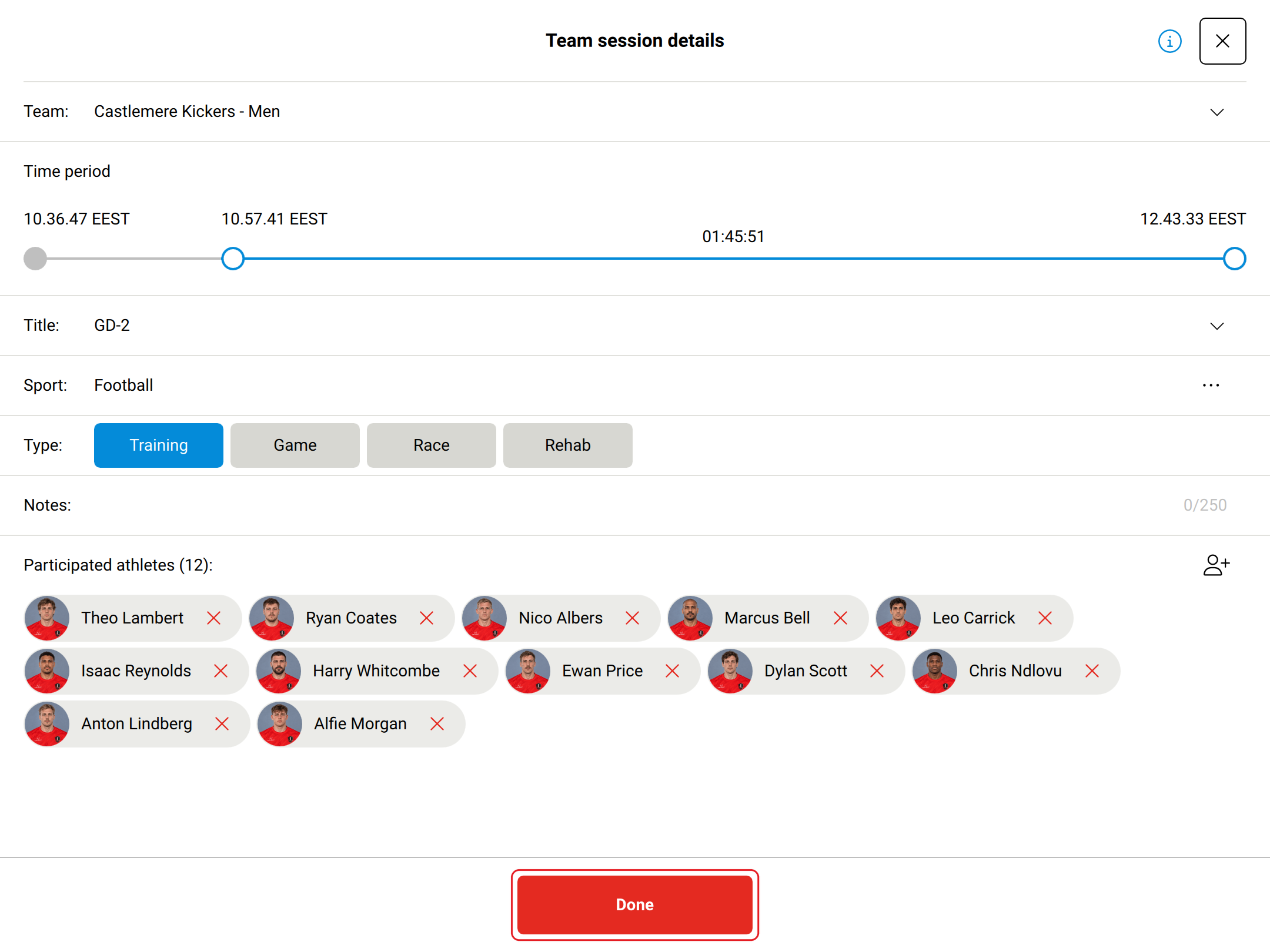
Screenshot: the team session details with the time period, title, sport, type, notes and participating athletes.
- Download and sync the data. Open Download, keep the Sensors within 10 meters of the device and tap Download all. The Coach app syncs the data to Sports Cloud when the device is online; data downloaded later or on other devices is added to the session when the data is synced.
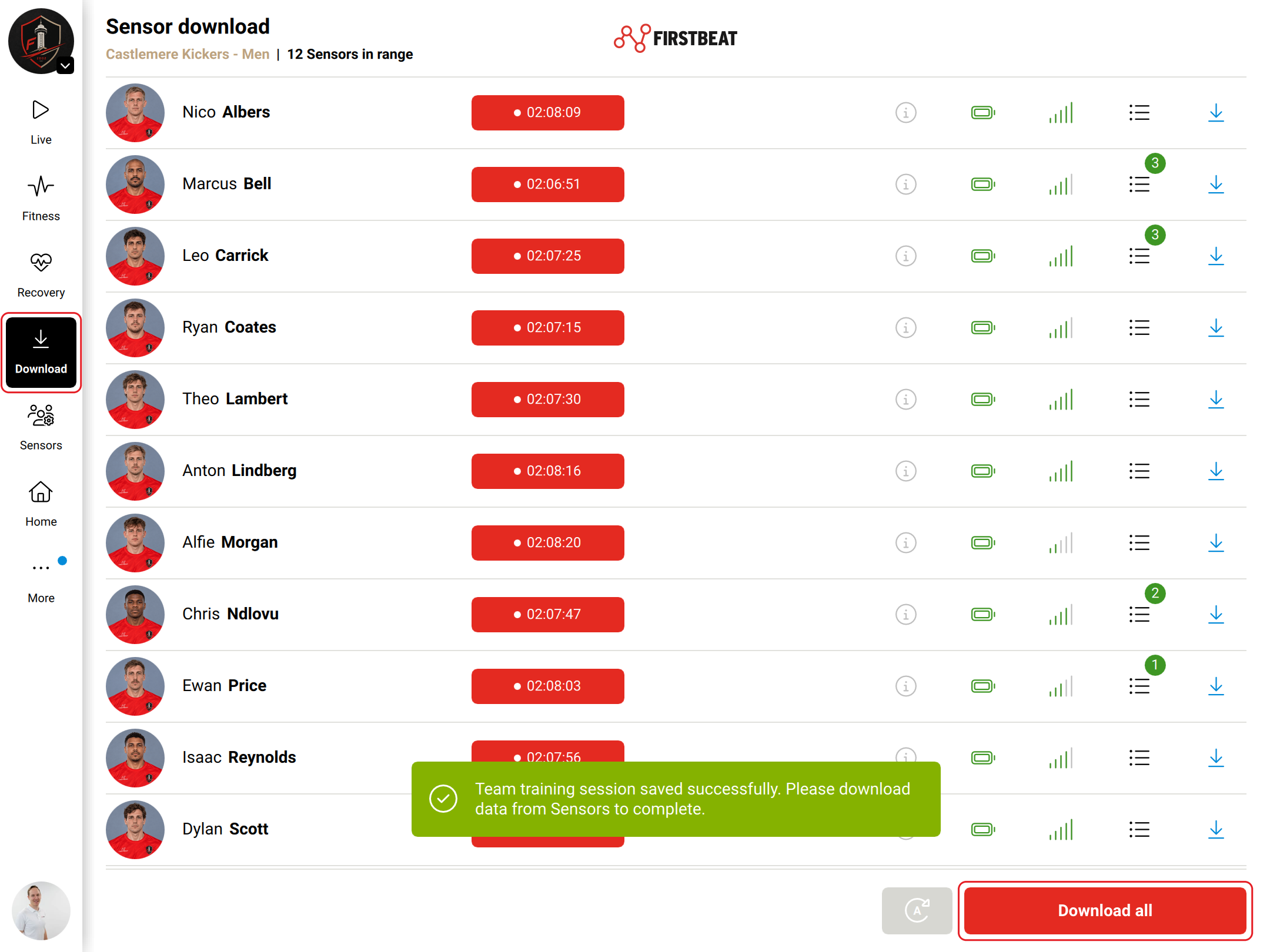
Screenshot: the Sensor download view with the message "Team training session saved successfully. Please download data from Sensors to complete." and the Download all button.
Result
The session is complete when all athlete data has been downloaded and synced, and the session appears with its sync status on the Coach app Home screen.
Need more help? Ask the Customer Agent chat on this page or email support@firstbeat.com.