
This article explains how coaches open the Reporting Tool in Firstbeat Sports Cloud. You can open the Reporting Tool from a session or from the MENU, and each way opens a different starting page.
Before you start
- The Reporting Tool is available in all subscription tiers.
- A Session Report needs a session. Create the session live in the Firstbeat Sports: Coach app or afterwards in Sports Cloud.
- The Weekly Training Summary page requires the Sports Premium+ subscription tier.
Option 1: Open the Reporting Tool from a session
- Log in. Log in to Sports Cloud at https://sports.firstbeat.com.
- Select the session. In the Sports Cloud Dashboard, select the day of the session and then the session.
- Open the Session Report. Click OPEN SESSION REPORT. The Reporting Tool opens with the selected session open.
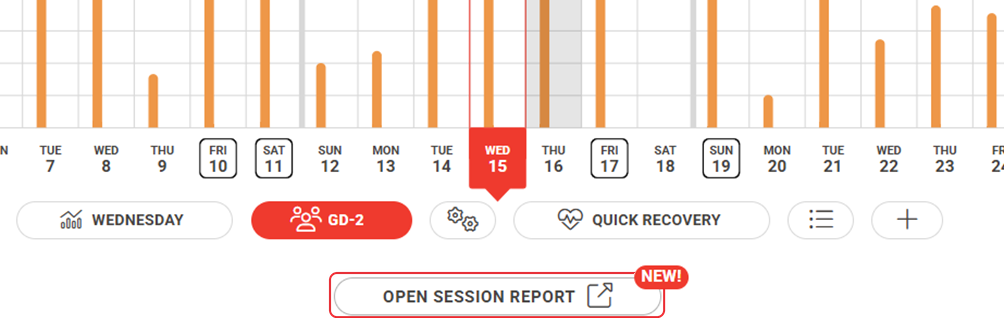
Screenshot: the Dashboard with a selected session and the OPEN SESSION REPORT button below the session buttons.
Option 2: Open the Reporting Tool from the MENU
- Log in. Log in to Sports Cloud at https://sports.firstbeat.com.
- Open REPORTING. Click MENU in the top-left corner and click REPORTING. The Reporting Tool opens with the Weekly Training Summary page open.
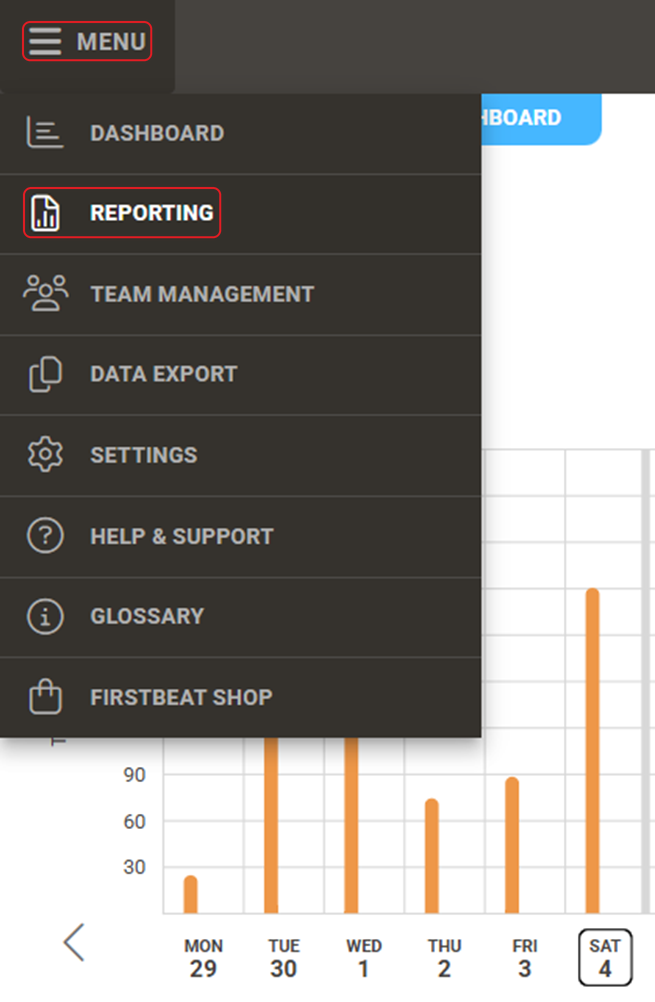
Screenshot: the Sports Cloud MENU with the REPORTING option highlighted.
Result
The Reporting Tool opens with the Calendar and the Reports list on the left side.
Need more help? Ask the Customer Agent chat on this page or email support@firstbeat.com.