
This article explains how coaches can export training data from Firstbeat Sports Cloud to Microsoft Excel files with Data Export. Exports are processed in the background, so you can use other features, log out or close the browser while the file is created.
Before you start
- You need Sports Premium for summary data. Sports Premium+ also includes time series, root mean square of successive differences (RMSSD) and R-R interval data (the time between consecutive heartbeats).
- If Time series is grey, your account does not have access to time series export. To upgrade, contact your account manager.
- One export can include a maximum of one month of data.
Steps
- Open Data Export. Log in to Sports Cloud at https://sports.firstbeat.com, open Menu in the top-left corner and select Data Export.
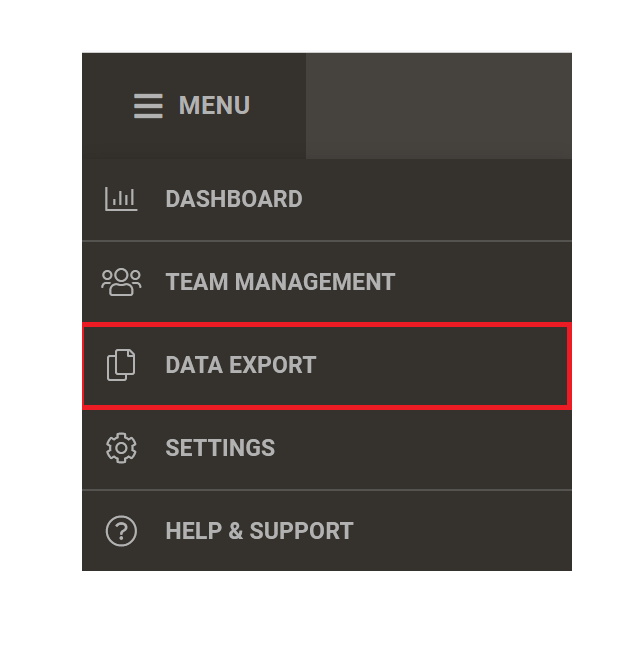
Screenshot: the open Sports Cloud Menu with Data Export highlighted.
- Select the team. Select the team in the top-right corner. A message at the top of the view shows the selected team.
- Choose the data. In Time period, choose the start and end dates. In Measurement type, select any combination of Training, Game, Race, Rehab, Quick Recovery, Stress & Recovery and Fitness test.
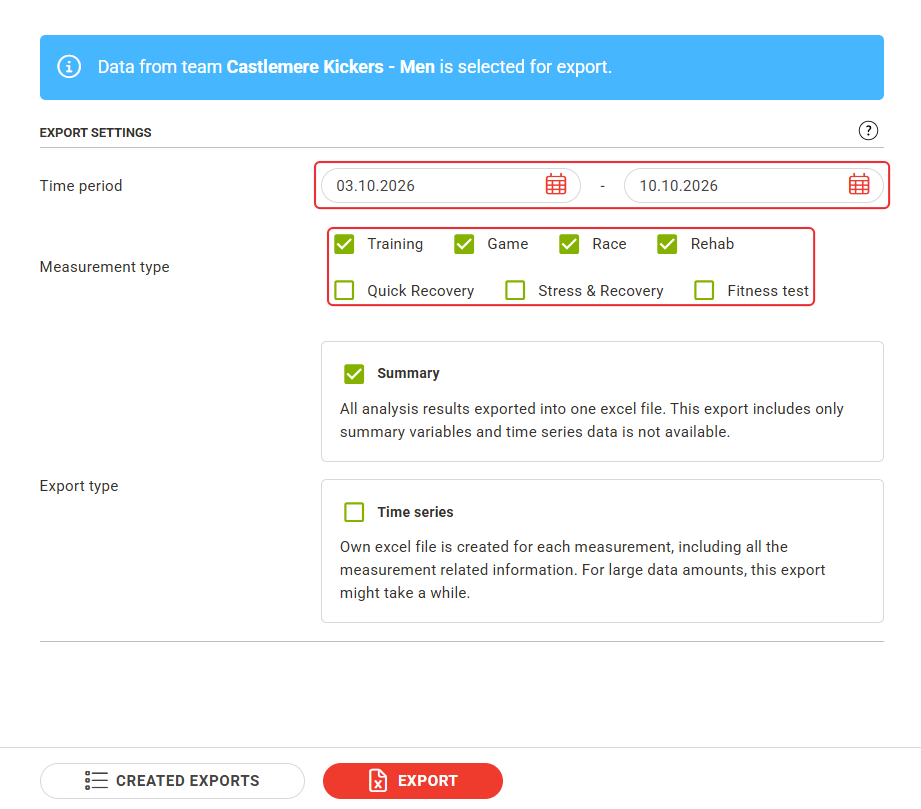
Screenshot: the Export Settings section with Time period and Measurement type highlighted.
- Choose the export type. Select Summary to export all analysis results into one Excel file. With Sports Premium+, also select Time series to get time series, RMSSD and R-R data in one Excel file per measurement.
- Export and download. Click EXPORT. The CREATED EXPORTS view opens and lists the exports you have created. When the status is Ready for the download, click the download icon in the row. Created exports are stored for 30 days. To open the list later, click CREATED EXPORTS next to the EXPORT button.
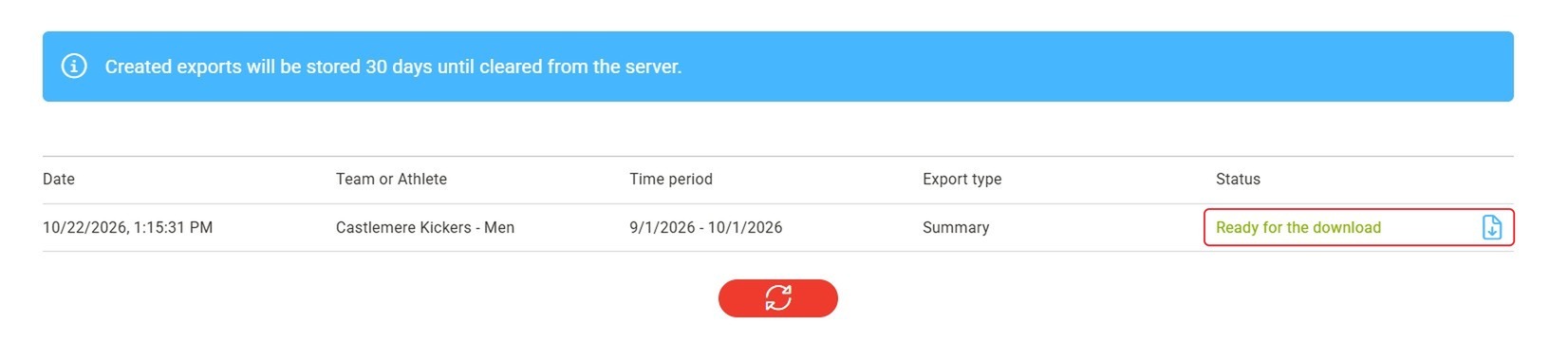
Screenshot: the CREATED EXPORTS list with the status Ready for the download and the download icon highlighted.
Result
The finished export appears in the CREATED EXPORTS view as one Excel file, or as a zip file when the export contains several Excel files.
Need more help? Ask the Customer Agent chat on this page or email support@firstbeat.com.