
This article explains how coaches create a custom Session Report in the Reporting Tool of Firstbeat Sports Cloud. A custom Session Report lets you choose the variables in the Training Chart, the Summary Cards and the Athlete Ranking, and how the session is compared with earlier sessions.
Before you start
- Custom Session Reports require the Sports Premium+ subscription tier.
- You need a session created live in the Firstbeat Sports: Coach app or afterwards in Sports Cloud.
Steps
- Open a Session Report. Log in to Sports Cloud at https://sports.firstbeat.com, select the day and the session in the Dashboard and click OPEN SESSION REPORT.
- Open Report Configuration. Click the settings icon in the top-right corner of the Session Report, to the right of the share icon.
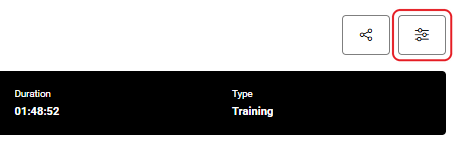
Screenshot: the share icon and, to its right, the settings icon in the top-right corner of a Session Report.
- Create the report. Click the + button next to the Topic list and enter a name for the report in the Topic field.
- Select the variables. Select the variables for the Training Chart, then for the Summary Cards and Athlete Ranking. Click + to add a variable and – to remove one.
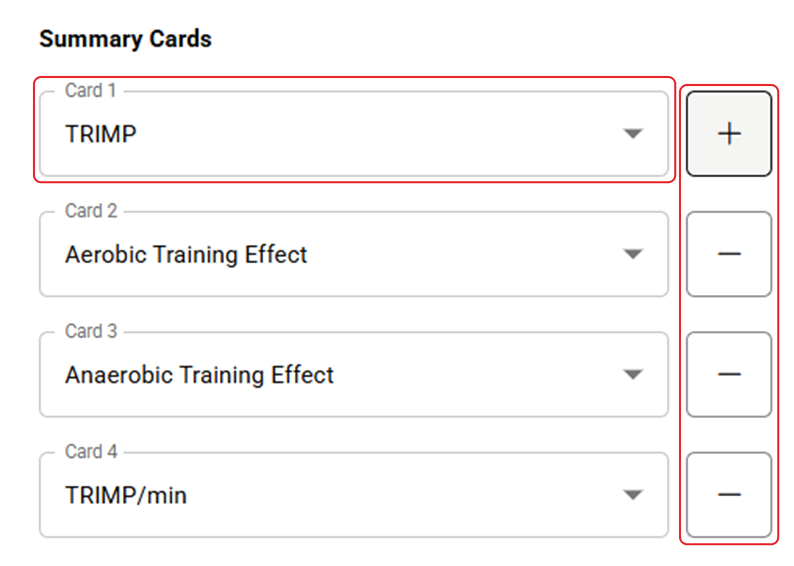
Screenshot: the Summary Cards settings with variable lists Card 1 to Card 4 and the + and – buttons.
- Set the history comparison. Select Show history comparison in the report., then set Compare sessions by (title, type such as Training, Game, Race or Rehab, or day of the week), Compare laps by and Comparison range (7 to 730 days). Lap name and session compares laps with the same name only within the selected sessions, and Lap name only compares them across all team training sessions.
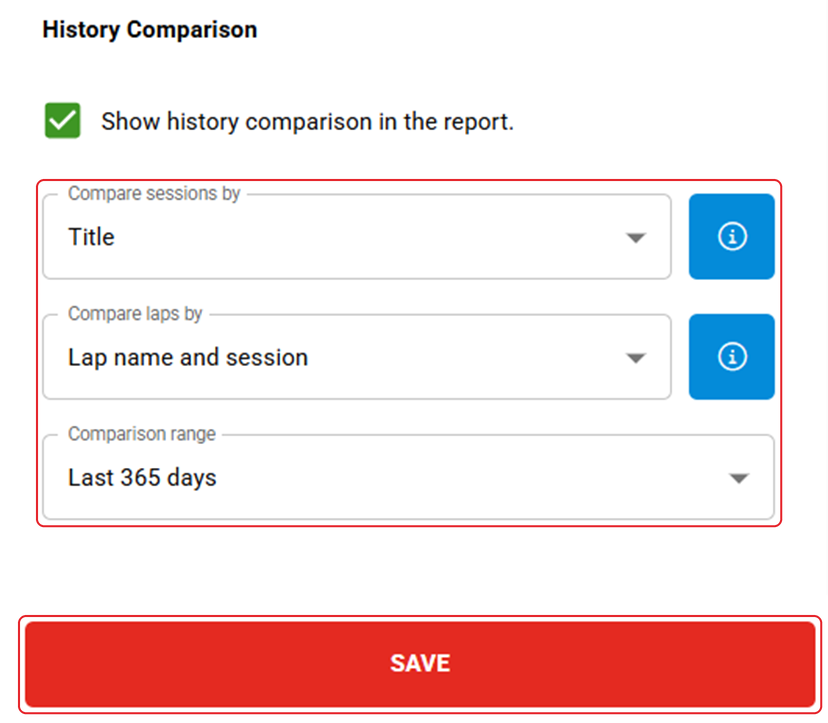
Screenshot: the History Comparison section with the comparison settings and the SAVE button.
- Save. Click SAVE.
Result
The custom report appears in the Reports list of a session next to Internal Load, External Load and Drill Intensity, and the report's Summary Cards show up to the last 10 sessions in the comparison range.
Delete a custom Session Report
- Open Report Configuration. Open a Session Report and click the settings icon in the top-right corner.
- Delete the report. Select the custom report in the Topic list and click the trash bin button next to the list.
Need more help? Ask the Customer Agent chat on this page or email support@firstbeat.com.