
This article explains how coaches set up automated Session Reports for athletes, also called training reports, in the Reporting Tool of Firstbeat Sports Cloud. The selected athletes receive their own report by email after each training.
Before you start
- Automated reports are included in all subscription tiers, from Sports Standard up.
- Athlete reports are sent after each training. Athlete reports do not need a live session in the Firstbeat Sports: Coach app. Garmin measurements do not trigger an automatic report.
- The settings you save apply to all selected athletes and replace their current settings.
Steps
- Open a Session Report. Log in to Sports Cloud at https://sports.firstbeat.com, select a session on the main dashboard and click OPEN SESSION REPORT.
- Open Report Sharing. Click the share icon in the top-right corner, to the left of the settings icon.
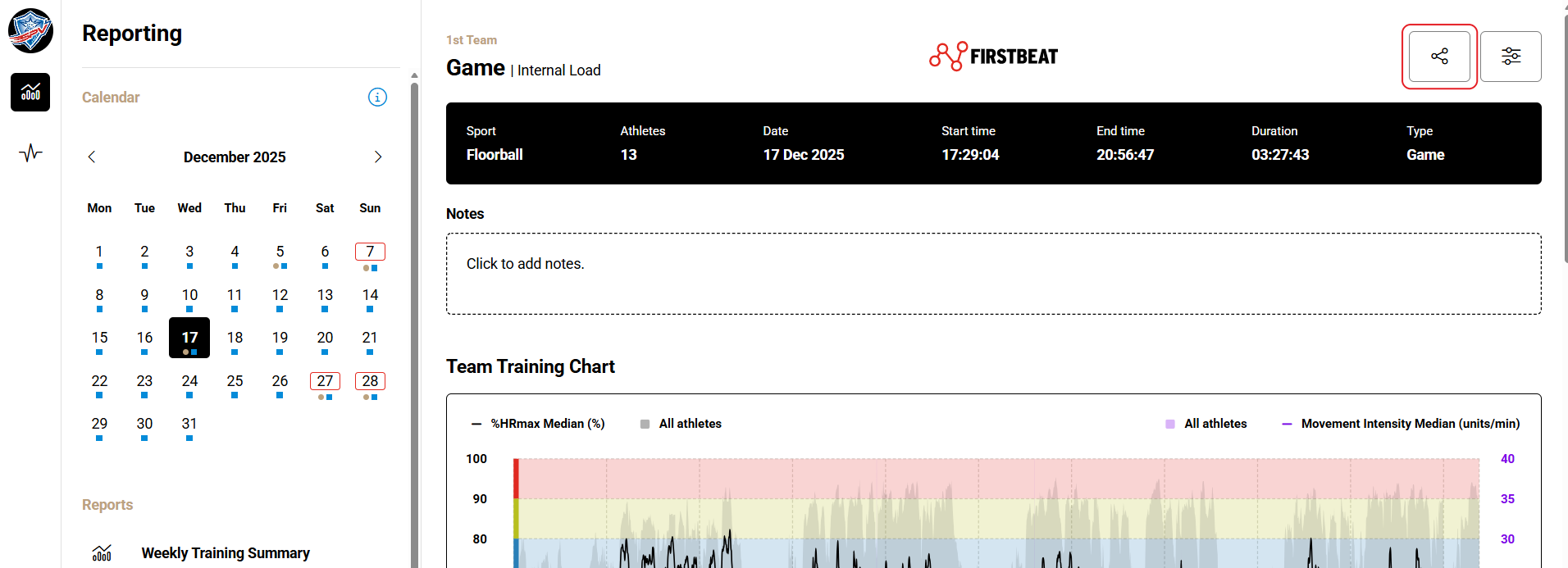
Screenshot: a team Session Report with the share icon and the settings icon in the top-right corner.
- Select the athletes. Scroll down to Automated Athlete Training Reports – For Athletes and, in the Athletes field, select all athletes or the athletes who should receive reports.
- Select the topics. Under Select which topics to include in the automated emails for these athletes, select the report topics.
- Save. Click Save changes.
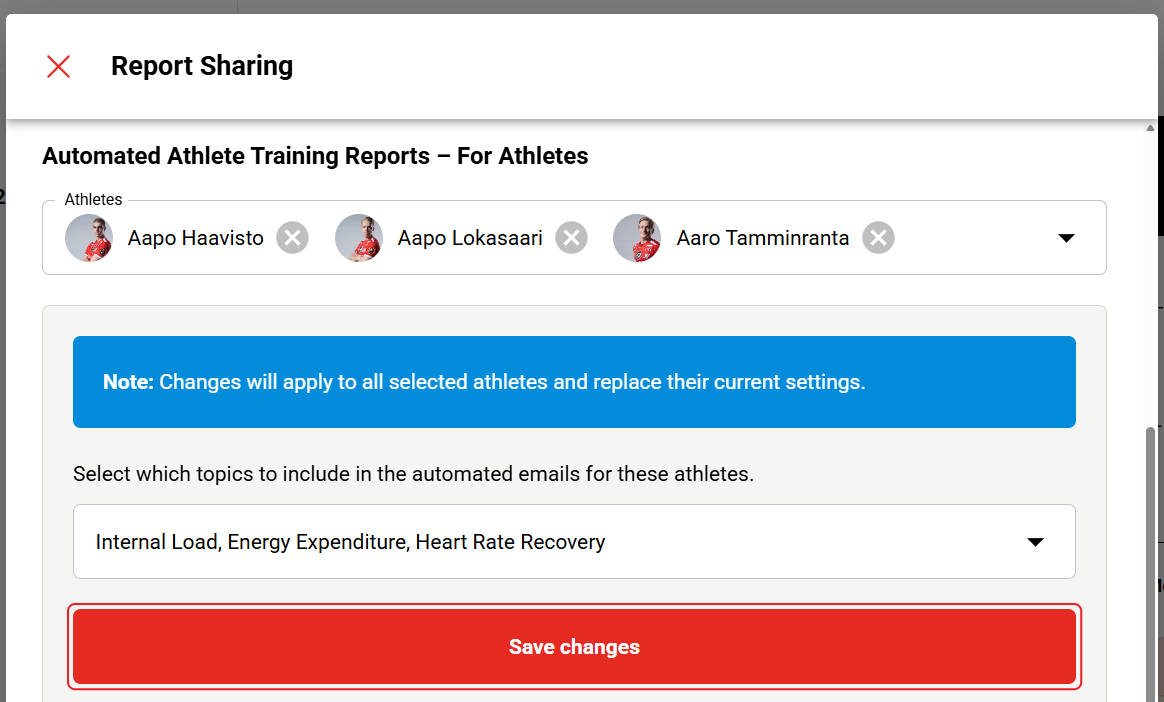
Screenshot: the For Athletes section with the selected athletes and topics and the Save changes button.
Result
After each training, the selected athletes receive the selected report topics by email.
Need more help? Ask the Customer Agent chat on this page or email support@firstbeat.com.