
This article explains how coaches invite athletes to link their Garmin Connect accounts to Firstbeat Sports Cloud, and how athletes complete the linking.
Before you start
- You need Sports Premium or Sports Premium+. The Garmin application programming interface (API) for training measurements is a Sports Premium feature.
- Each athlete needs a Garmin Connect account.
Steps
- Open Team Management. Log in to Sports Cloud at https://sports.firstbeat.com, open Menu in the top-left corner and select Team Management.
- Invite the athlete. In the athlete's row, click Invite. Sports Cloud emails an invitation to the athlete.
- Open the link (athlete). The athlete opens the email "Link your Garmin Connect account with Firstbeat Sports" and clicks Link accounts. If the button does not work, the athlete copies the link address from the email to a web browser.
- Authorize the sharing (athlete). The athlete signs in to Garmin Connect, selects the data to share and authorizes the sharing. If linking fails on a mobile device, the athlete opens the link on a computer or uninstalls the Garmin Connect app and tries again.
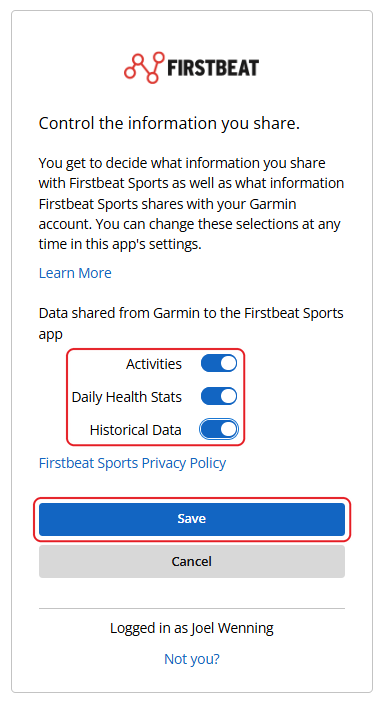
Screenshot: the Garmin Connect page where the athlete selects which data to share.
Result
The Garmin Connect icon appears in the API Connections column of the athlete's row, and Sports Cloud syncs the athlete's Garmin Connect data from the past 90 days and all new data automatically.
Need more help? Ask the Customer Agent chat on this page or email support@firstbeat.com.