
This article explains how coaches and athletes can adjust the training impulse (TRIMP) value of a manually added exercise, or delete the exercise, in Firstbeat Sports Cloud. You can open the exercise from the Ranking table of its session, or directly when a single athlete (not a team) is selected. Athletes can adjust and delete their own manually added exercises.
Before you start
- Manual Exercise Input requires Sports Premium or Sports Premium+.
Option 1: Adjust the TRIMP value
- Open the exercise. Log in to Sports Cloud at https://sports.firstbeat.com, select the date and the session with the manually added exercise, and click the Settings cogwheel icon at the end of the athlete's row in the Ranking table.
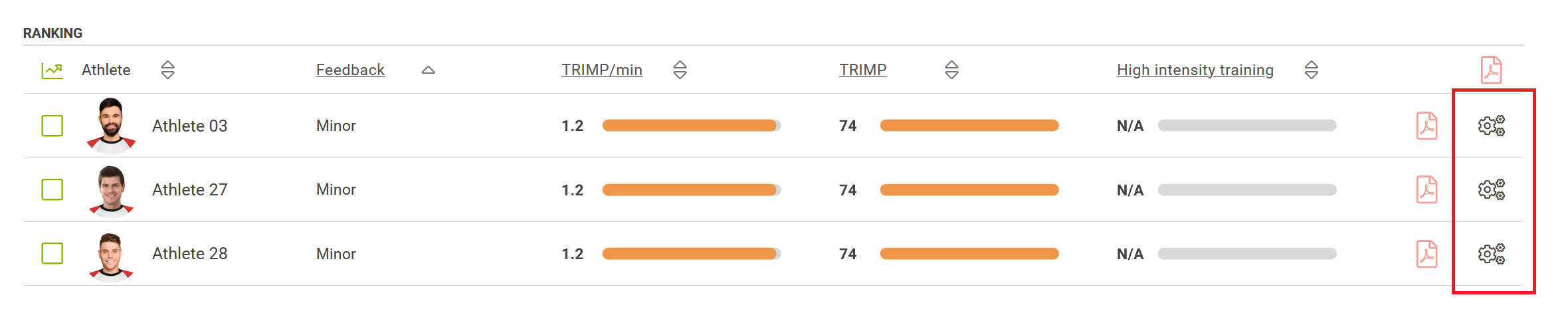
Screenshot: the session Ranking table with the Settings cogwheel icons at the end of the athlete rows.
- Change the TRIMP. In Athlete training load, move the intensity slider or enter the TRIMP value directly, and click Save.
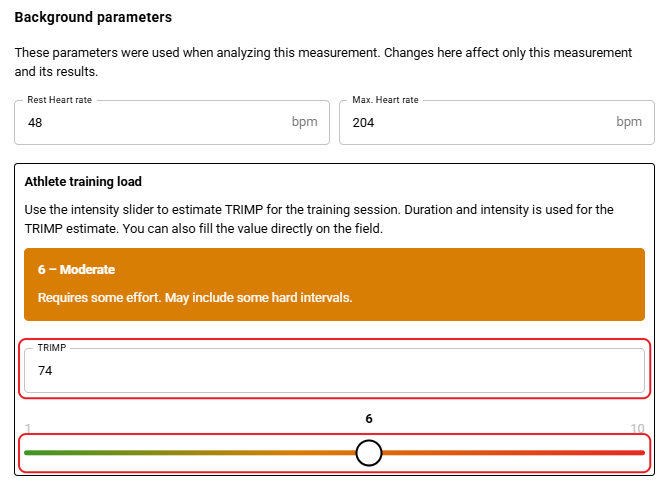
Screenshot: the measurement settings of a manually added exercise with the Background parameters and the Athlete training load section with the TRIMP field and the intensity slider.
Option 2: Delete the exercise
- Open the exercise. Log in to Sports Cloud, select the date and the session with the manually added exercise, and click the Settings cogwheel icon at the end of the athlete's row in the Ranking table.
- Delete the exercise. Click the trash bin icon in the exercise settings.
Result
The exercise shows the new TRIMP value, or the deleted exercise no longer appears for the athlete.
Need more help? Ask the Customer Agent chat on this page or email support@firstbeat.com.