
This article explains how coaches can create, edit and delete sessions in Firstbeat Sports Cloud. A session defines the time frame and the participants of a training session. To analyze parts of a session, use laps.
- Data that Sports Cloud receives later is added to the session automatically.
- Sports Cloud sends an automated team session report only when the session was created live and data from all athletes in the session has synced to Sports Cloud. If the report does not arrive, check your reporting settings.
Option 1: Create a new session
- Open the day. Log in to Sports Cloud at https://sports.firstbeat.com and select the day of the training session.
- Add the session. Click the plus (+) icon below the main chart and select Create a new team training session.
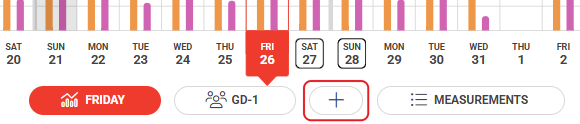
Screenshot: the plus (+) icon between the session button and the Measurements button below the main chart.
- Set the time frame. Set the Start time and End time. The heart rate (HR) chart lines show when the athletes were active.
- Add the details. Enter the Title, select the Sport and select the Type: Training, Game, Race or Rehab.
- Select athletes and save. Select the check boxes of the athletes in the session and click Save.
Option 2: Edit an existing session
- Open the session. Log in to Sports Cloud, select the day and select the session below the main chart.
- Open the settings. Click the Settings cogwheel icon next to the session button. The Edit team training session view opens.

Screenshot: the Settings cogwheel icon next to the selected session button below the main chart.
- Make the changes. Adjust the Start time, End time, Title, Sport, Type or the selected athletes, and click Save in the top-right corner.
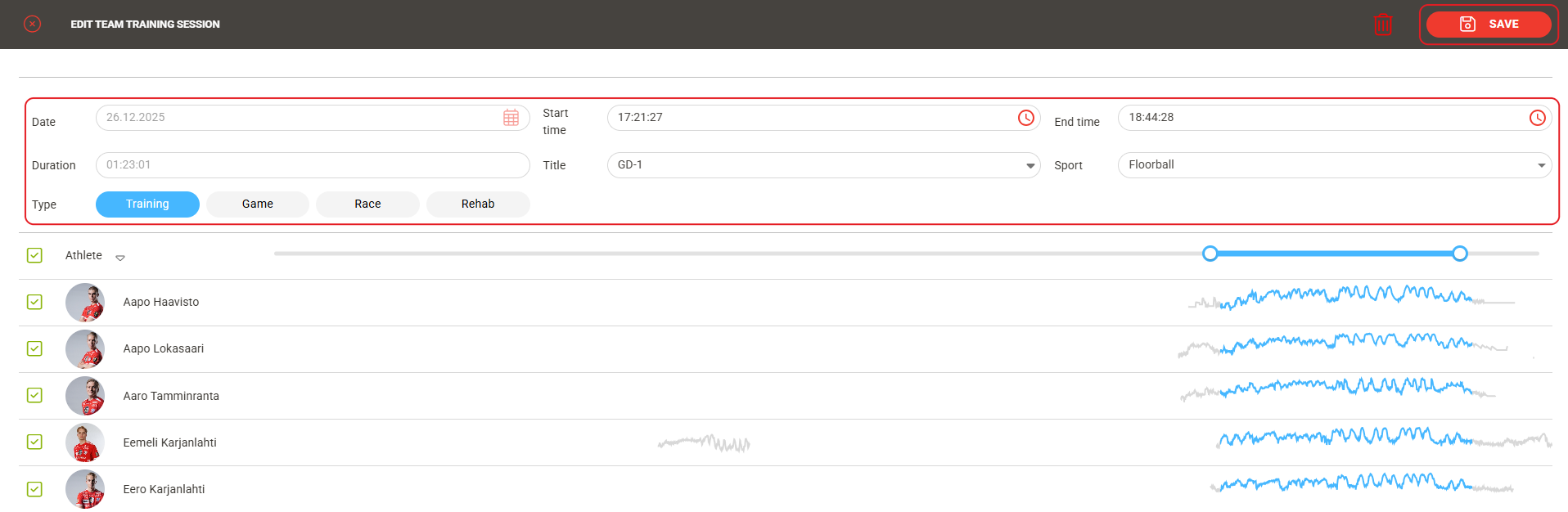
Screenshot: the Edit team training session view with the session fields, the athlete list and the Save button in the top-right corner.
Option 3: Delete a session
- Open the settings. Select the session below the main chart and click the Settings cogwheel icon next to the session button.
- Delete the session. In the Edit team training session view, click the trash bin icon next to Save in the top-right corner.
Result
The session appears as a session button below the main chart, with the time frame and athletes you selected.
Need more help? Ask the Customer Agent chat on this page or email support@firstbeat.com.