
This article explains how coaches and athletes can add an exercise manually in Firstbeat Sports Cloud with Manual Exercise Input when a session or workout could not be recorded. Sports Cloud estimates a training impulse (TRIMP) value from the duration and intensity you enter and creates a session for the exercise automatically.
Before you start
- Manual Exercise Input requires Sports Premium or Sports Premium+.
- The athlete must not have measurement data at the selected time.
Steps
- Select the date and athletes. Log in to Sports Cloud at https://sports.firstbeat.com and select the date. Select the team to add the exercise for several athletes, or select one athlete.
- Open Manual Exercise Input. Click the + button under the main chart and select Add manual exercise.
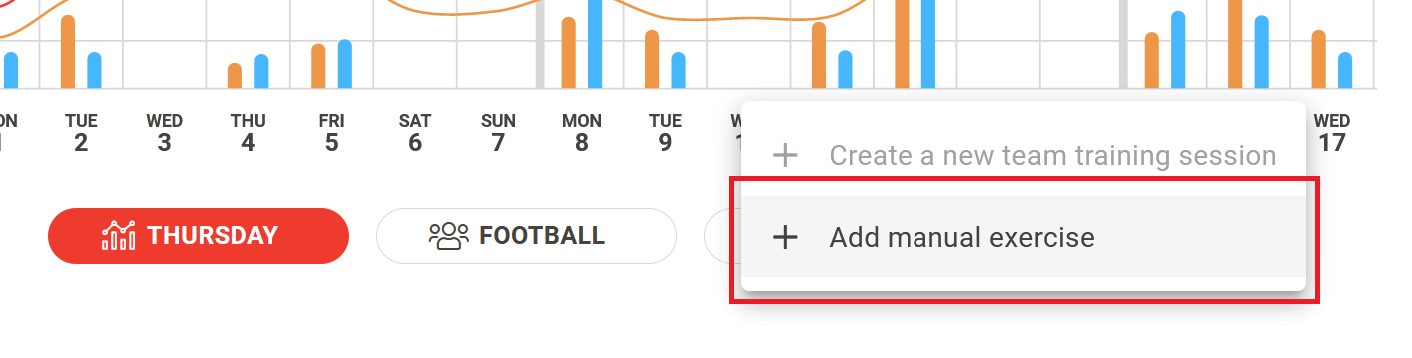
Screenshot: the menu under the main chart with the Add manual exercise option.
- Enter the exercise details. In Details, enter the Date, Start time and Duration (hh:mm:ss). Optionally enter the Title, select the Sport and select the Type (Training, Game, Race or Rehab).
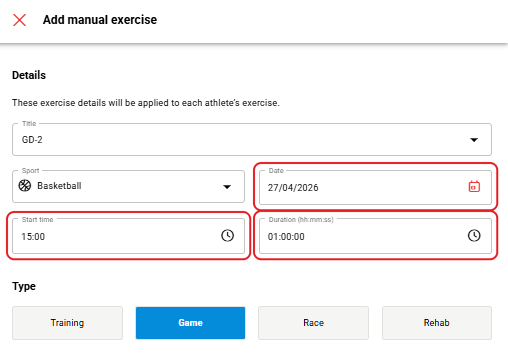
Screenshot: the Add manual exercise window with the Title, Sport, Date, Start time and Duration fields and the Type buttons.
- Estimate the intensity. In Athlete training load, move the intensity slider from 1 to 10. The TRIMP field shows the estimate, and you can also enter the value directly.
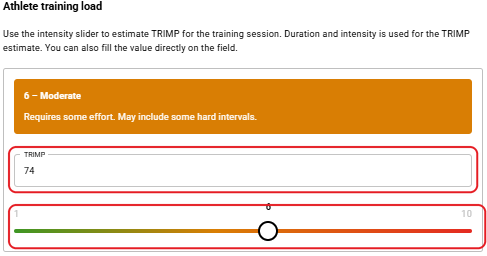
Screenshot: the Athlete training load section with the intensity 6 – Moderate, the TRIMP field and the 1–10 slider.
- Select athletes and save. In Athletes, select the athletes, adjust the Intensity or Estimated TRIMP of individual athletes if needed, and click Save at the bottom of the screen.
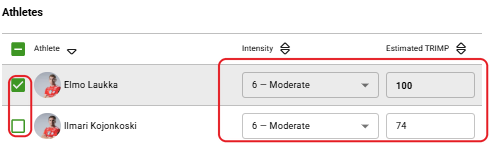
Screenshot: the Athletes list with a check box, an Intensity menu and an Estimated TRIMP field for each athlete.
Result
Sports Cloud creates a session for the exercise, and each selected athlete receives a TRIMP value based on the estimate.
Need more help? Ask the Customer Agent chat on this page or email support@firstbeat.com.