
The Submaximal Fitness Test Report shows the results of a Submaximal Fitness Test (SMFT) for a team and for each athlete in Firstbeat Sports Cloud. Open the report from the Reports table in the Reporting Tool under Fitness Testing, or from the Fitness Testing view of the Firstbeat Sports: Coach app after a live test.
Overview and Team Summary
- The overview shows the team, the protocol name, Sport, Athletes, Date, Duration and Type.
- Peak %HRmax (60s): The highest 60-second average heart rate during the test, as a percentage of maximum heart rate (HRmax). A clearly lower value than in previous tests indicates improved condition.
- Heart rate recovery (60s, %): The greatest 60-second heart rate decrease after exercise, as a percentage of HRmax.
- The From previous column shows the change from the previous test in percentage points.
- A gliding 60-second window finds both values, so the test start and end times do not need to be exact.
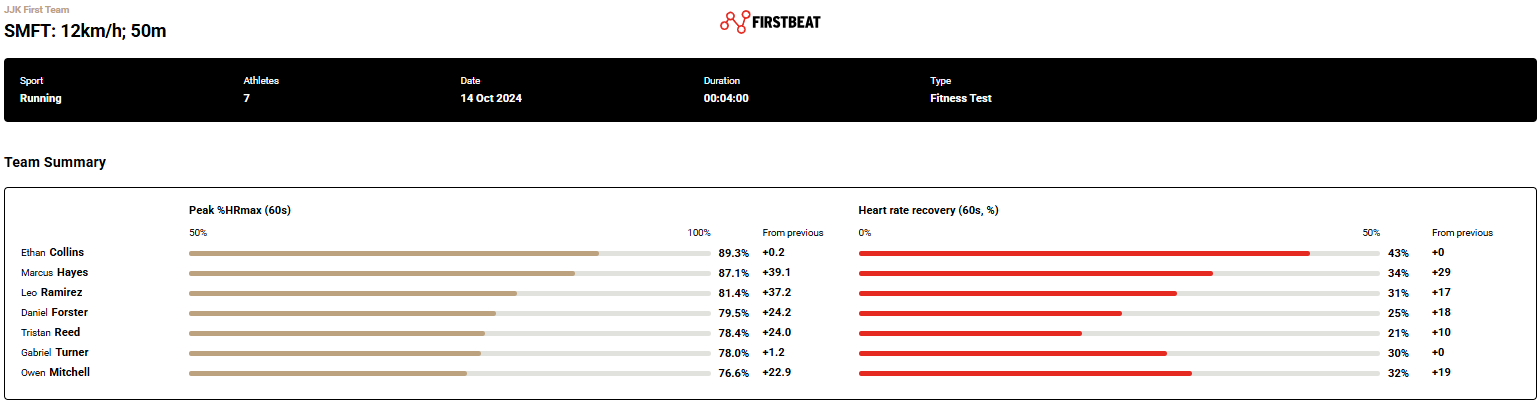
Screenshot: the report overview and the Team Summary bars for each athlete.
Comparison Chart
The Comparison Chart shows each athlete's heart rate curve as %HRmax during the test and the recovery period. Use the chart to find athletes who started too fast, did not reach peak heart rate at the end, had a delayed heart rate response or had data quality issues.
Athletes
- The Athletes section shows each athlete's result, Z-score and Absolute Difference for both key metrics.
- Z-score: How many standard deviations (SD) the result is from the athlete's personal average: Baseline (within ± 1 SD), Above or Below (within 1–2 SD) or Clearly Above or Below (2+ SD).
- Absolute Difference: How much the result differs from the athlete's average result, in absolute units.
- Click the arrow next to an athlete to open the test history: black dots are earlier results, and the colored area is the baseline range of ±1 SD.
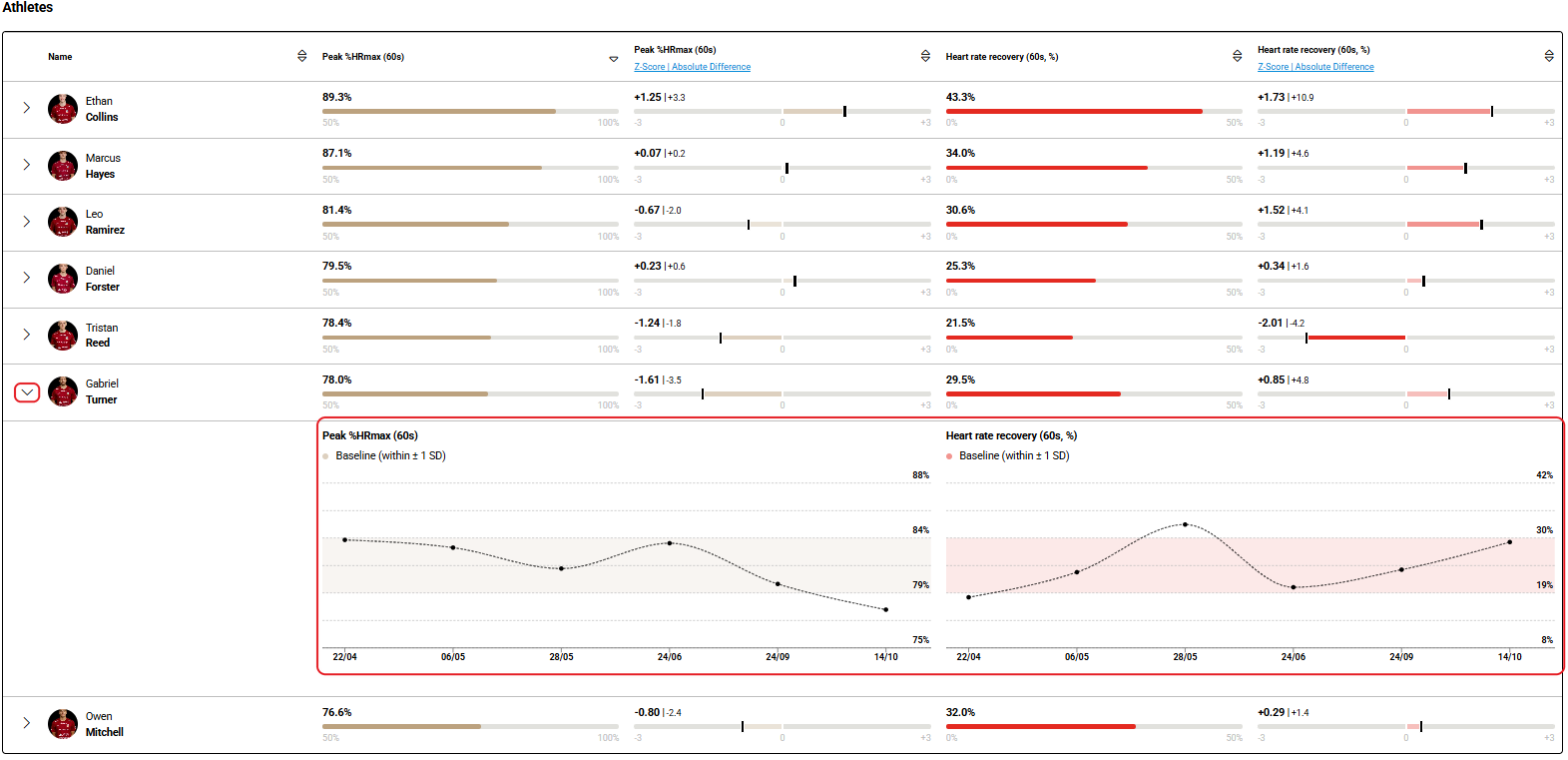
Screenshot: the Athletes section with one athlete's test history expanded.
Athlete report
To see one athlete, click the team logo in the top-left corner of the Reporting Tool and select the athlete. The athlete report has an Athlete Summary, the Comparison Chart and the athlete's test history.
Need more help? Ask the Customer Agent chat on this page or email support@firstbeat.com.