
This article explains how coaches can send Firstbeat Sports: Athlete app login credentials to athletes from Team Management in Firstbeat Sports Cloud. The athlete receives an email with instructions for creating a username and password.
Video: Athlete app instructions for coaches, about giving athletes access to the Athlete app.
Before you start
- The athlete profile must include a valid email address. Without a valid email address, the credentials cannot be sent.
- Credentials are sent to one athlete at a time.
Steps
- Select the team. Log in to Sports Cloud at https://sports.firstbeat.com, click the team icon in the top-right corner and select the athlete's team.
- Open Team Management. Open the MENU drop-down in the top-left corner and select TEAM MANAGEMENT.
- Open the athlete's access settings. Click the gear icon in the Cloud & App Access column of the athlete's row.
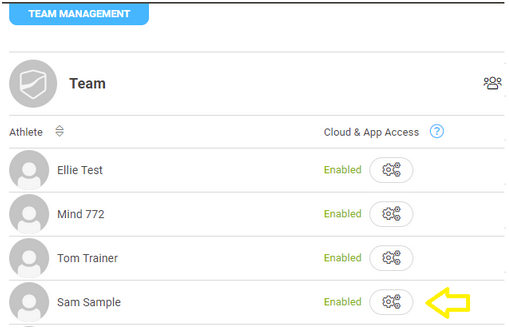
Screenshot: the athlete list in TEAM MANAGEMENT with the gear icon in the Cloud & App Access column.
- Send the credentials. Click Send Credentials.
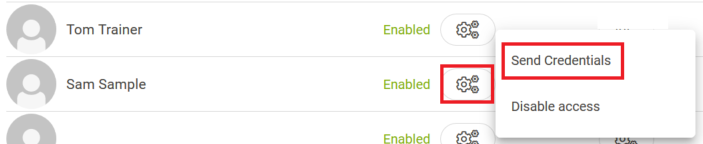
Screenshot: the gear icon menu with the Send Credentials and Disable access options.
Result
The message "Login information sent" appears in the bottom-left corner, and the athlete receives an email titled "Thank you for registering". If the athlete cannot find the email, ask the athlete to check the spam folder, and send the credentials again if needed.
Need more help? Ask the Customer Agent chat on this page or email support@firstbeat.com.