
This article explains how coaches import a .fit file to an athlete's profile in Firstbeat Sports Cloud. Importing a .fit file adds a measurement from another device or system to the athlete's profile.
Before you start
- The .fit file is saved on your device. You can import one file at a time.
Steps
- Open the Dashboard. Log in to Sports Cloud at https://sports.firstbeat.com and open the Dashboard.
- Open the import. Click the upload icon in the top-right corner of the Dashboard.
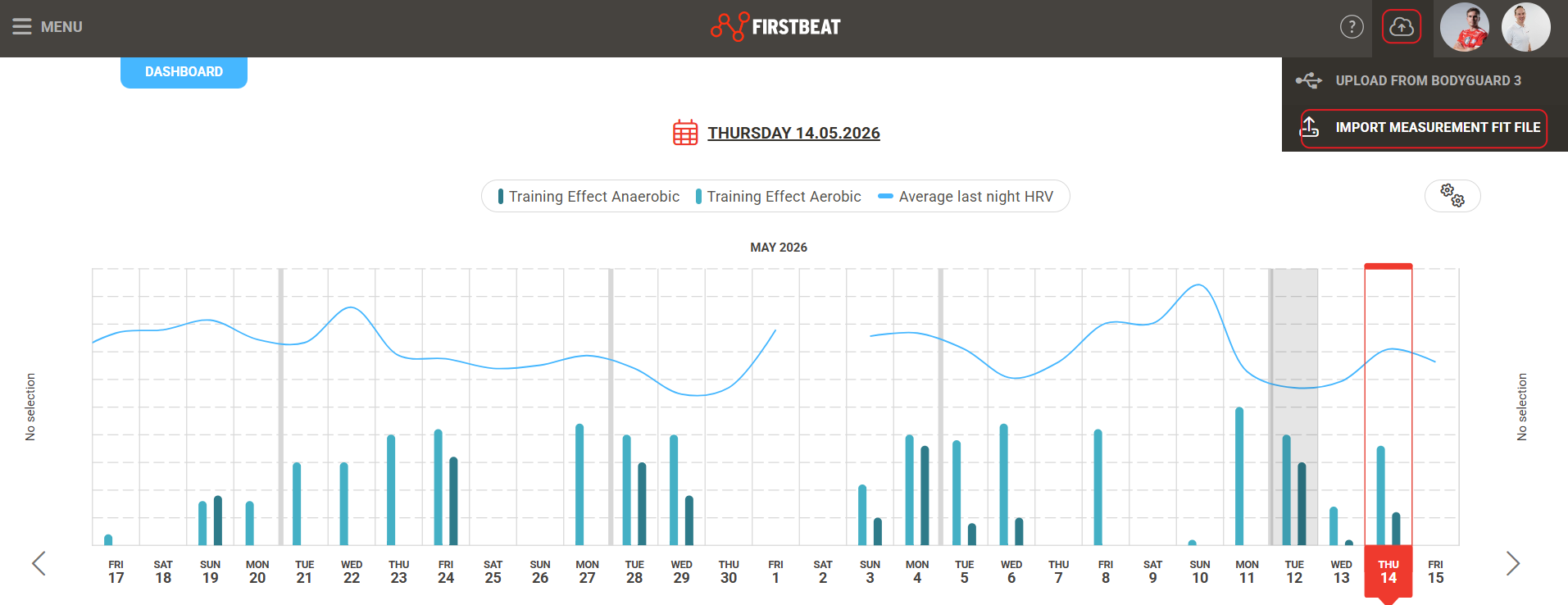
Screenshot: the Sports Cloud Dashboard with the upload icon in the top-right corner.
- Select the athlete. Select the athlete profile that the measurement belongs to.
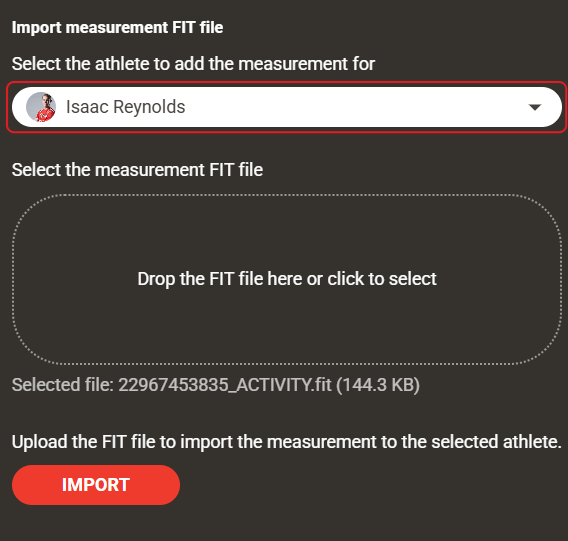
Screenshot: the import window with the athlete profile selection and the upload area.
- Import the file. Drag and drop the .fit file into the upload area, or click the upload text to select the file, and click Import.
Result
The measurement appears in the selected athlete's profile in Sports Cloud.
Need more help? Ask the Customer Agent chat on this page or email support@firstbeat.com.