
This article explains how a coach can add a new coach user to the team account in Firstbeat Sports Cloud.
Each coach needs a personal username and password. Do not share one login between coaches: a personal login keeps the account secure and makes sure that each coach receives the correct training reports.
Before you start
- You need a Sports Cloud login with access to Coach Management.
- An Admin can add coaches and other Admins. A coach can invite new coaches only to the teams that the coach has access to.
- You need the new coach's email address. Sports Cloud sends the login details to that email address.
Steps
- Open Coach Management. Log in to Sports Cloud at https://sports.firstbeat.com, open the profile menu in the top-right corner and select COACH MANAGEMENT.
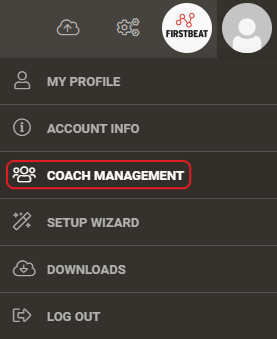
Screenshot: the profile menu in the top-right corner of Sports Cloud with the COACH MANAGEMENT option.
- Enter the coach's details. Click ADD NEW COACH at the bottom of the page. Under REQUIRED INFORMATION, enter a unique Username (or use the coach's email address), the First name, Last name and E-mail, and select the Language and Time zone.
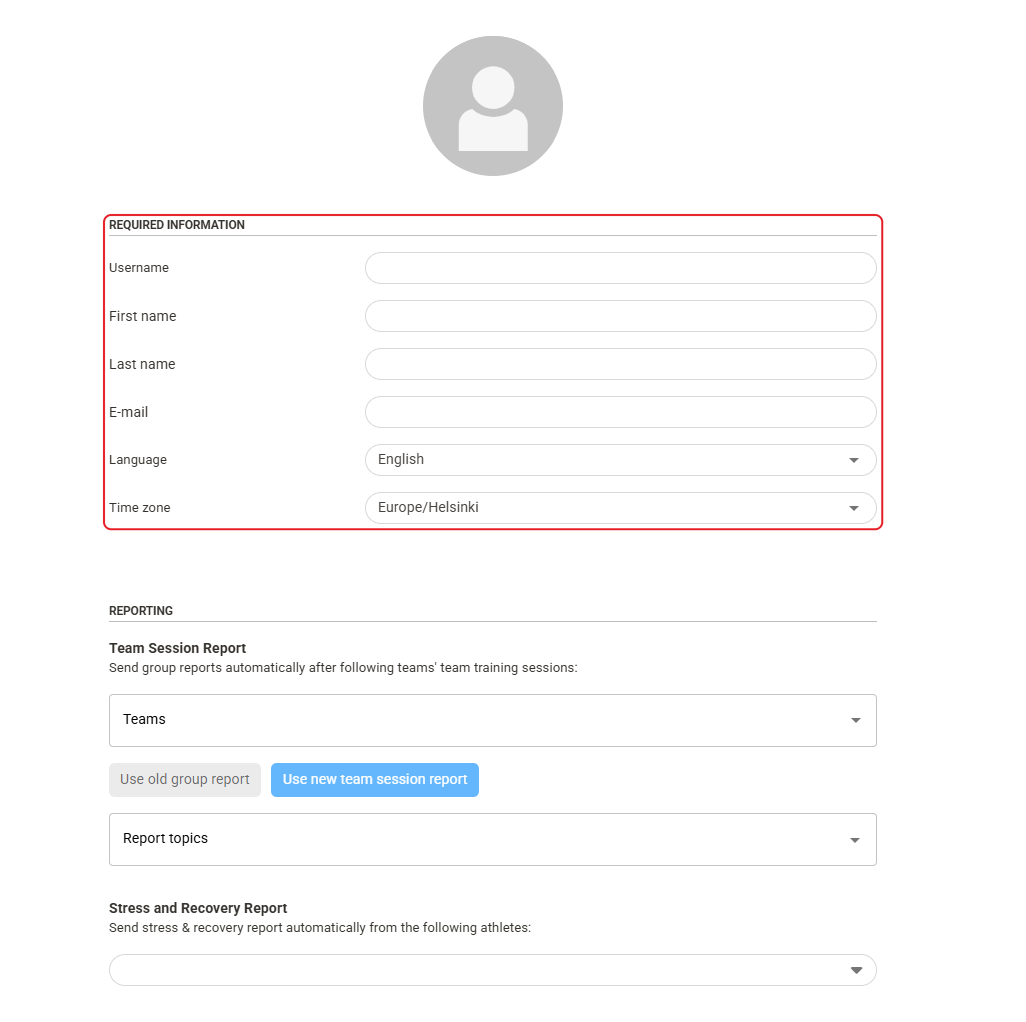
Screenshot: the new coach form with the REQUIRED INFORMATION and REPORTING sections.
- Choose automatic reports (optional). Under REPORTING, select the Teams whose Team Session Report is sent to the coach automatically, and the athletes whose Stress and Recovery Report is sent to the coach.
- Save. Click Save in the top-right corner of the page.
Result
The new coach appears in the coach list in Coach Management, and Sports Cloud emails the login details to the new coach.
Need more help? Ask the Customer Agent chat on this page or email support@firstbeat.com.