
This article explains how to trim a measurement in Firstbeat Sports Cloud to remove time from the beginning or the end of the measurement.
- Trimming cannot be undone.
- If the trimmed measurement no longer matches a session or a lap, Sports Cloud removes the measurement from that session or lap.
- To change a measurement to a Quick Recovery Test (QRT), first trim the measurement to shorter than 5 minutes. Then select Quick Recovery in Type in Measurement settings.
Steps
- Open the measurements list. Log in to Sports Cloud at https://sports.firstbeat.com, select the day and click the Measurements button under the Daily Chart.
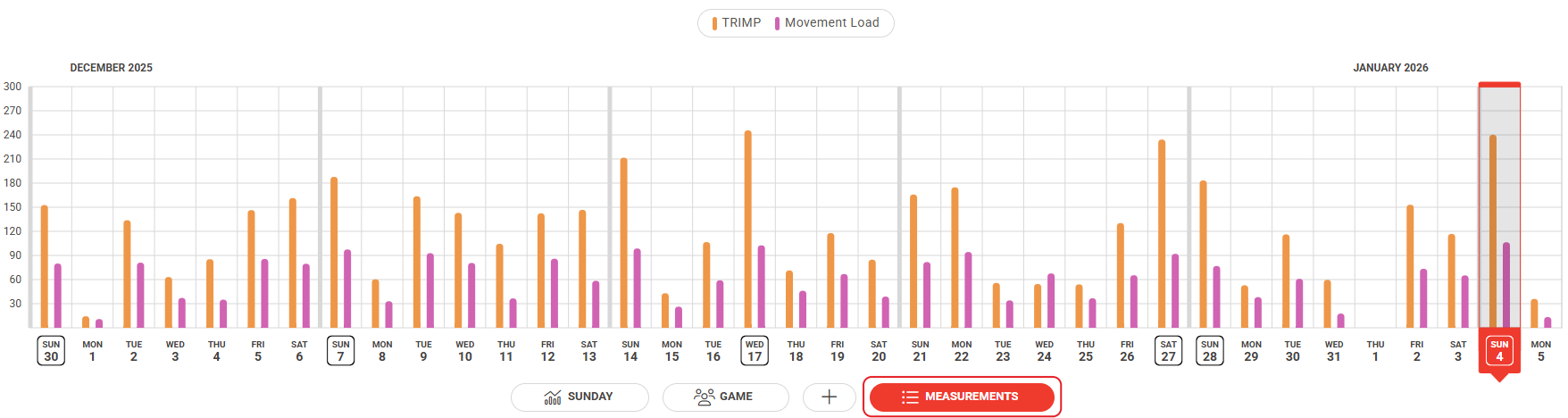
Screenshot: the Daily Chart with the Measurements button below the chart.
Note: You can filter the measurements by team, group/position or athlete in the top-right corner.
- Open Measurement settings. Click the three dots at the right end of the measurement row and click Measurement settings.
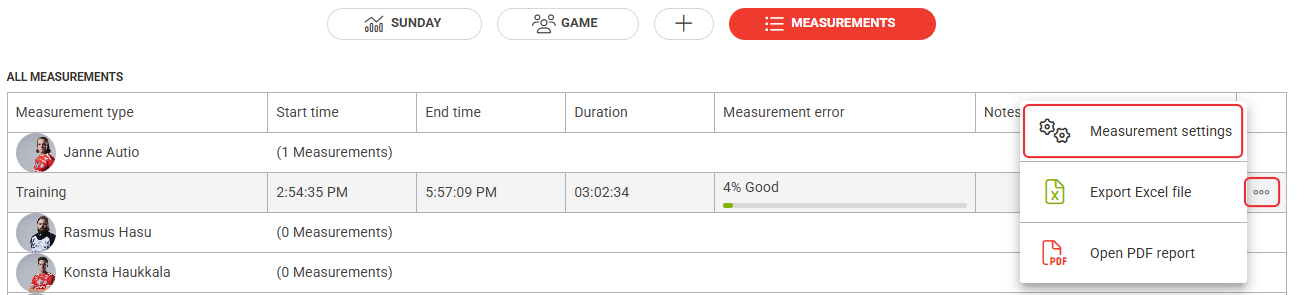
Screenshot: the All measurements list with the three-dot menu open and the Measurement settings option.
- Trim the measurement. Scroll down to Trim & Merge and move the slider at the beginning or the end of the chart. To set exact times, adjust Trim start and Trim end under the chart.
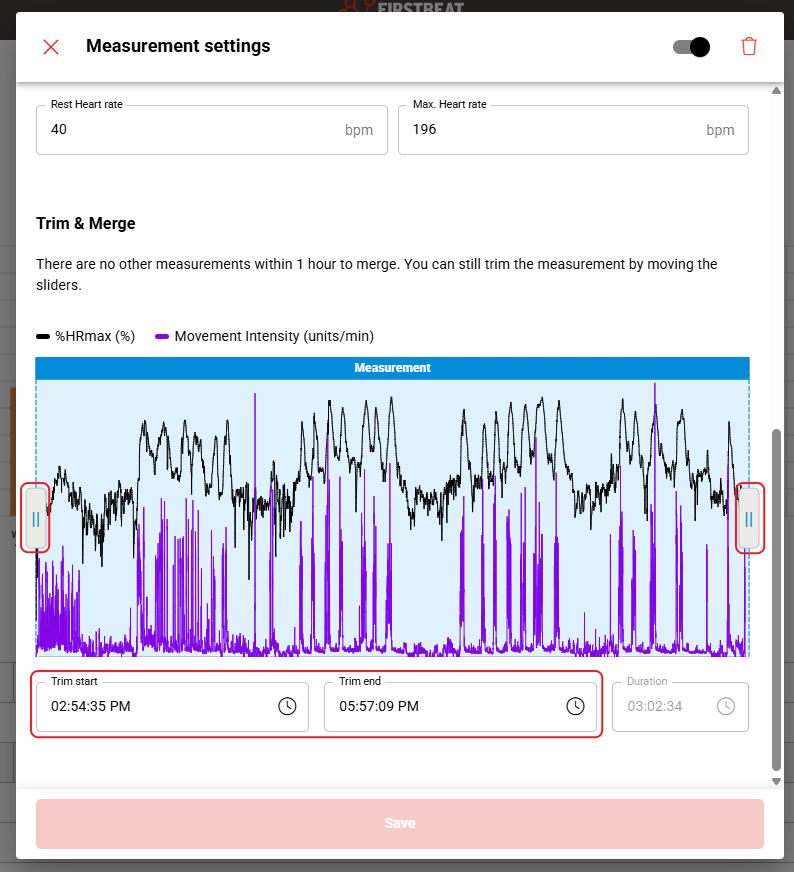
Screenshot: the Trim & Merge section with a slider at each end of the chart and the Trim start, Trim end and Duration fields.
- Save. Click Save at the bottom of the dialog.
Result
The measurement starts and ends at the new times when you open Measurement settings again.
Need more help? Ask the Customer Agent chat on this page or email support@firstbeat.com.