
This article explains how coaches register a Firstbeat Sports Cloud account and set it up with the Setup Wizard.
Video: introduction to using Sports Cloud.
Before you start
- You need the "Welcome to Firstbeat Sports" email. If the link has expired, ask an Admin of your account to send your credentials again.
- You need an iPad or iPhone for the Firstbeat Sports: Coach app.
- You can skip any Setup Wizard step and reopen the wizard later from the profile menu > SETUP WIZARD.
Note: Admins can send the credentials again in Sports Cloud: click the profile picture in the top-right corner > Coach Management. If you are the first user of your organization and your link has expired, contact support@firstbeat.com.
Steps
- Register. Click Register in the welcome email, confirm your first name, last name and username, enter your password twice and click SAVE.
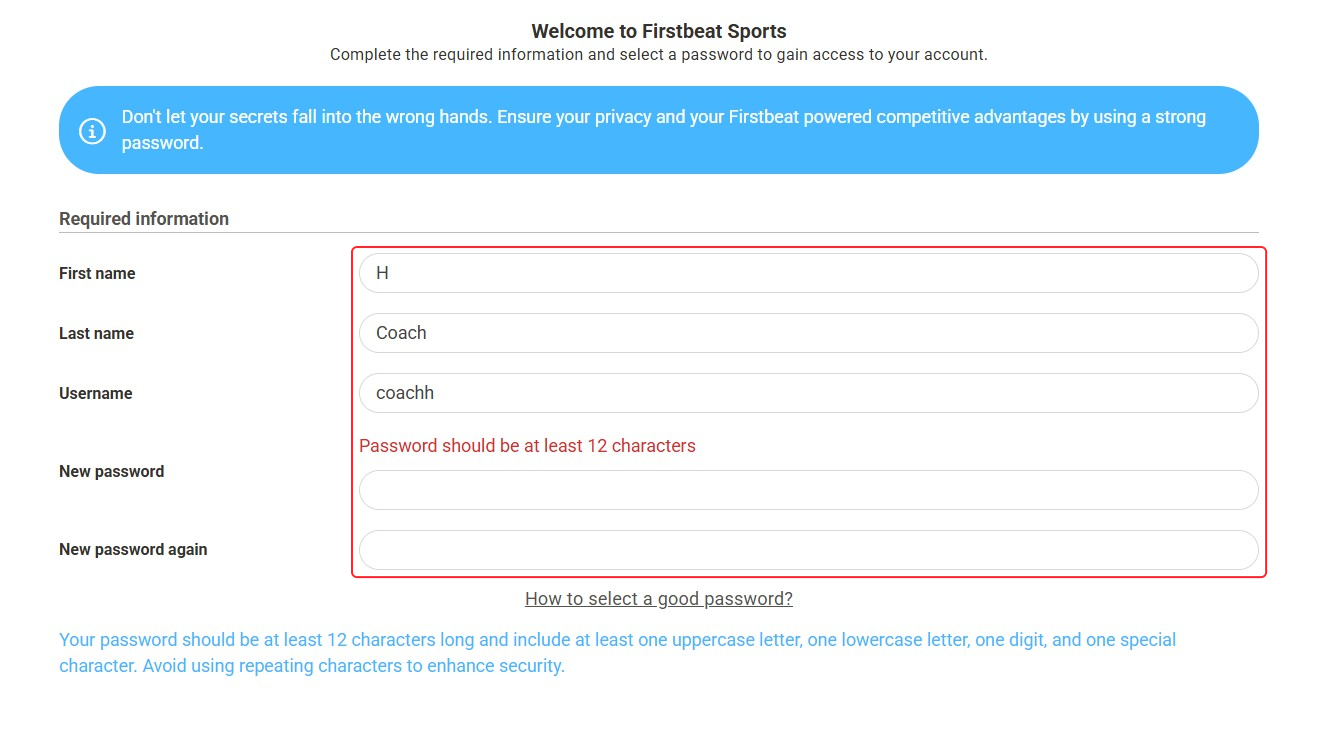
Screenshot: the registration page with the required information and the password fields.
- Log in. Click LOG IN and log in with your username and password. If the Setup Wizard does not open, open it from the profile menu > SETUP WIZARD.
- Add your details. Enter your personal information, select your units and check the heart rate zones. Click NEXT to continue.
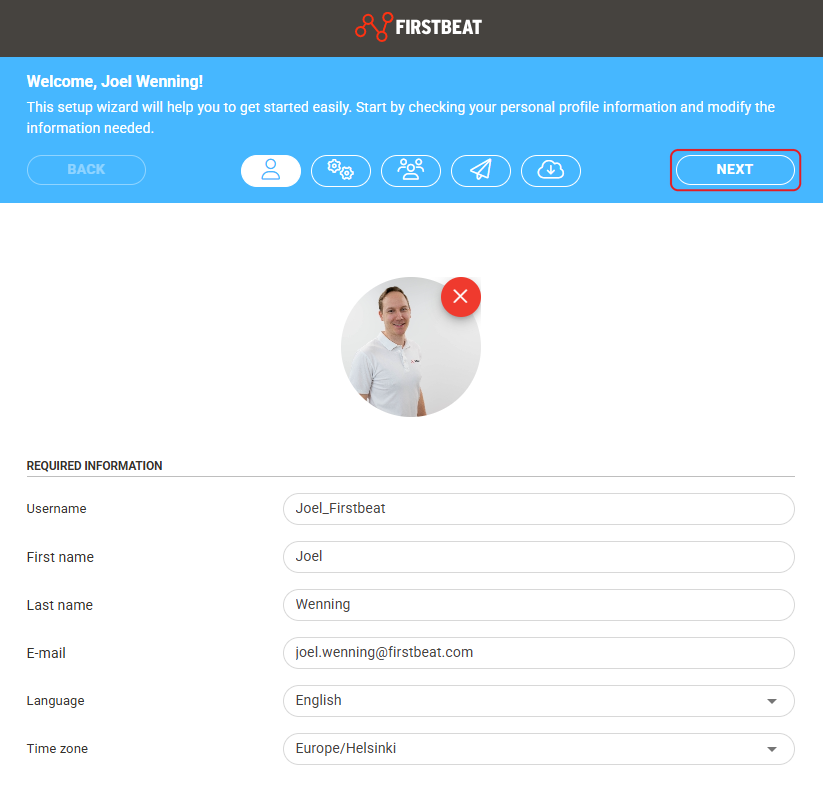
Screenshot: the first Setup Wizard step with the personal information fields and the NEXT button.
- Create your team and add athletes. In the Team management step of the Setup Wizard, click Create new and name the team. Then click Athlete management > Add New Athlete, fill in the required information and click Save. Add each athlete the same way.
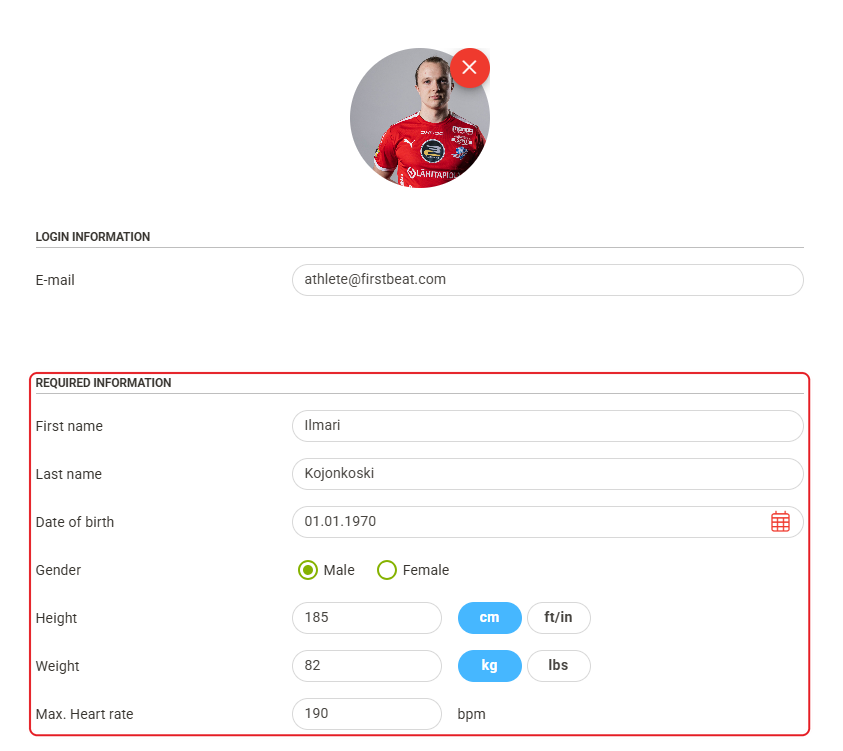
Screenshot: the new athlete form with the required information fields.
- Add other coaches (optional). In the Coach Management step of the Setup Wizard, click Add new coach. Sports Cloud emails the login details to the new coach. Click NEXT to skip this step.
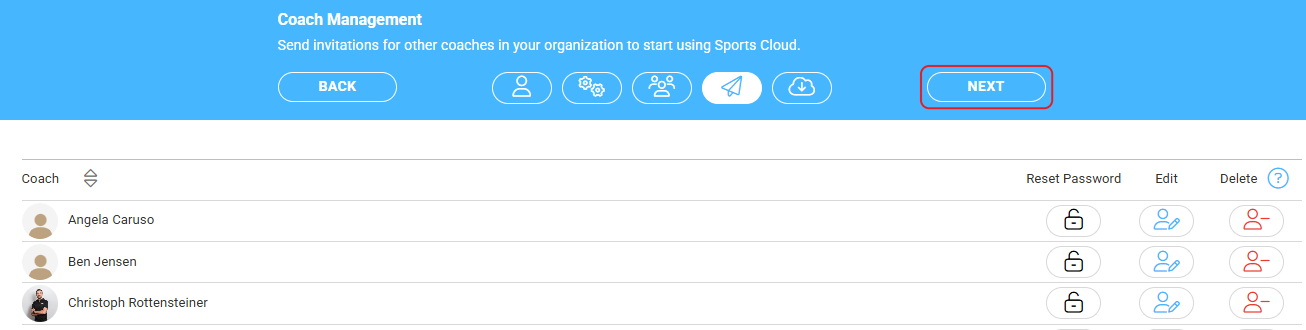
Screenshot: the Coach Management step with the coach list.
- Download the Coach app. Install the Coach app on your iPad or iPhone from the App Store.
Screenshot: the final Setup Wizard step with the Download on the App Store button.
Note: After the Setup Wizard, you can open these views from Sports Cloud: MENU in the top-left corner > Team Management (athletes are under Athlete management at the bottom of the page), and the profile picture in the top-right corner > Coach Management.
Result
Your team and athlete profiles are in Sports Cloud, and you can start recording sessions with the Coach app.
Need more help? Ask the Customer Agent chat on this page or email support@firstbeat.com.