
This article explains how coaches can email Training Reports and Group Reports from the Dashboard in Firstbeat Sports Cloud at any time, in addition to the automatic reports.
Steps
- Open the Dashboard. Log in to Sports Cloud at https://sports.firstbeat.com, go to the Dashboard and select the team or the player in the top-right corner.
- Open the report menu. Click the red PDF report icon of the team or the player and select Send via email.
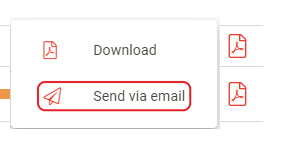
Screenshot: the report menu of the red PDF report icon with the Download and Send via email options.
- Select the recipients. In the SEND VIA EMAIL dialog, select the recipients. The options are listed below.
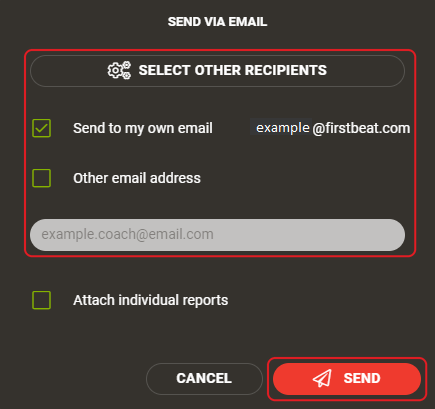
Screenshot: the SEND VIA EMAIL dialog for the Group Report with the recipient check boxes and the SEND button.
- Send. Click SEND.
Recipient options
- Send to my own email: Sends the report to the email address in your profile.
- Other email address: Sends the report to one other email address that you enter below the check box.
- Attach individual reports: Group Report only. Also sends the individual Training Reports to the same email.
- Send to the athlete: Individual report only. Sends the report to the athlete's email address.
- SELECT OTHER RECIPIENTS: Sends the report to other coaches on your account.
Result
Sports Cloud shows the message "All reports sent successfully."
Need more help? Ask the Customer Agent chat on this page or email support@firstbeat.com.