
This article explains how to edit the settings of a completed measurement in Firstbeat Sports Cloud. The changes affect only the selected measurement and its results, not the athlete's background information or the session title.
- To move a measurement that was recorded under the wrong athlete, change the Owner. Pairing the Sensor again does not move old measurements.
- A change to the maximum heart rate (HRmax) in the athlete profile affects only new measurements. To correct an old measurement, change Max. Heart rate in Measurement settings. For reanalysis of older data, contact your account manager.
- Quick Recovery is available only for measurements shorter than 5 minutes. To change a longer measurement to a Quick Recovery Test (QRT), first trim the measurement in Trim & Merge in the same dialog.
Steps
- Open the measurements list. Log in to Sports Cloud at https://sports.firstbeat.com, select the day and click the Measurements button under the Daily Chart.
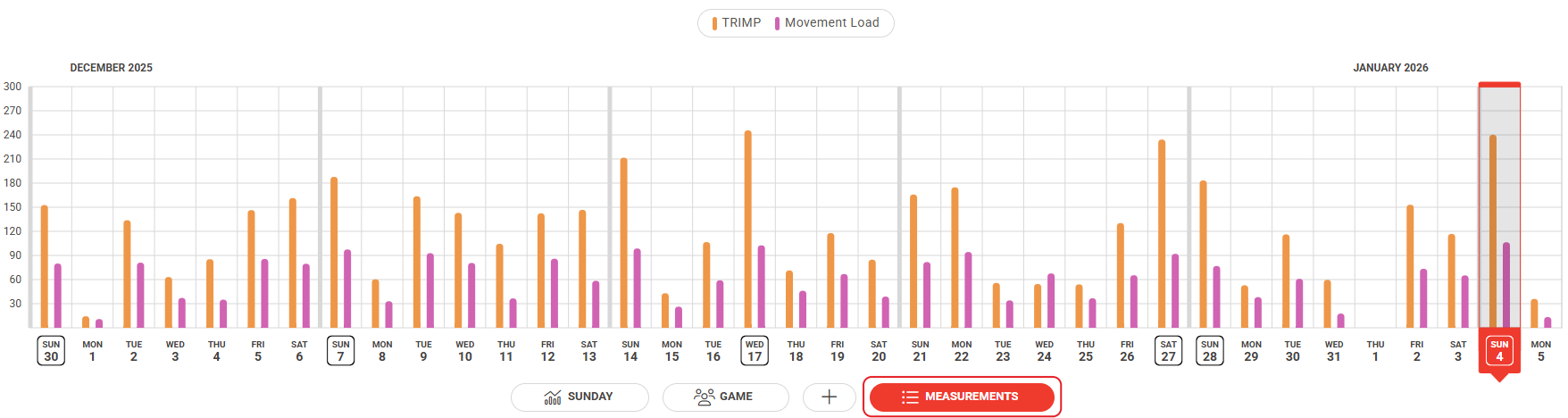
Screenshot: the Daily Chart with the Measurements button below the chart.
Note: You can filter the measurements by team, group/position or athlete in the top-right corner.
- Open Measurement settings. Click the three dots at the right end of the measurement row and click Measurement settings.
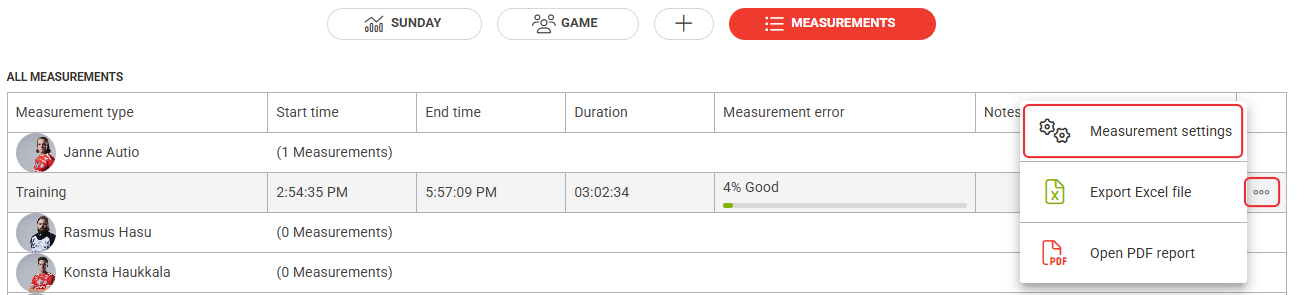
Screenshot: the All measurements list with the three-dot menu open and the Measurement settings option.
- Edit the fields. Change the Owner, Title, Sport, Date or Start time, the Type, or the background parameters Rest Heart rate and Max. Heart rate.
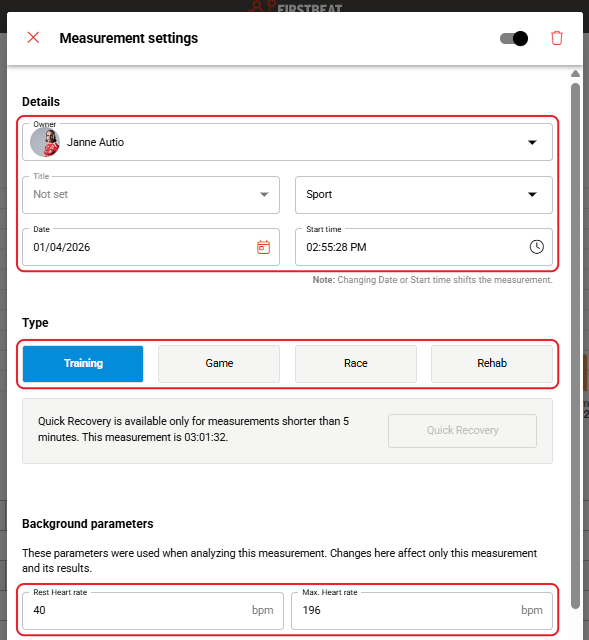
Screenshot: the Measurement settings dialog with the Details, Type and Background parameters sections.
- Save. Click Save at the bottom of the dialog.
Result
Sports Cloud analyzes the measurement again with the new values, and the results are updated.
Need more help? Ask the Customer Agent chat on this page or email support@firstbeat.com.