
This article explains how coaches can permanently delete an athlete profile and all of the athlete's measurements from Firstbeat Sports Cloud.
Before you start
- Deleting an athlete permanently deletes the athlete profile and all of the athlete's measurements and information. Removing an athlete from a team does not delete the profile.
- A coach with limited access rights can delete only athletes in the coach's teams and athletes who are not assigned to any team.
- To request deletion of an athlete's data under the General Data Protection Regulation (GDPR), send the request to Firstbeat Support at support@firstbeat.com from your organization's email address.
Steps
- Open Athlete management. Log in to Sports Cloud at https://sports.firstbeat.com, select MENU > TEAM MANAGEMENT in the top-left corner and click Athlete management at the bottom of the page.
- Find the athlete. Type the athlete's name in the Search box.
- Delete the athlete. Click the red Delete icon in the far-right column of the athlete's row.
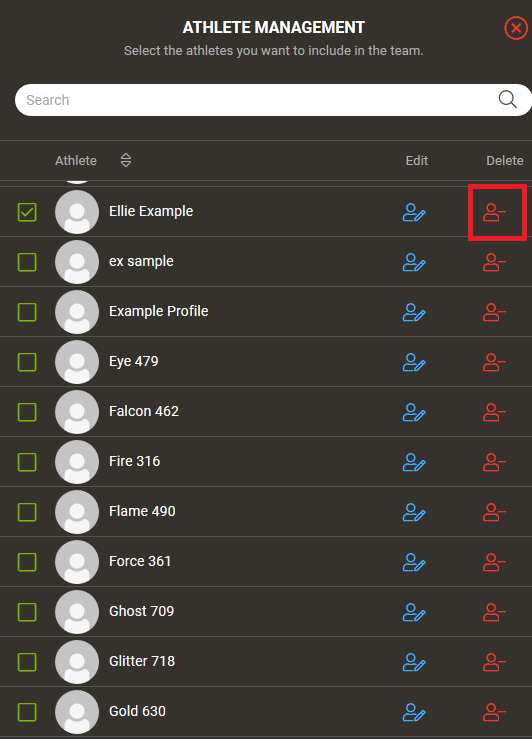
Screenshot: the ATHLETE MANAGEMENT panel with the red Delete icon in each athlete row.
- Confirm. Click YES in the confirmation pop-up.
Result
The athlete profile is deleted, and Sports Cloud returns you to the athlete profile list.
Need more help? Ask the Customer Agent chat on this page or email support@firstbeat.com.