
This article explains how coaches schedule the Training Summary Report in the Reporting Tool of Firstbeat Sports Cloud so that a coach receives the report by email on selected days. For example, a coach can receive the weekly report every Monday at 6 am for weekly planning.
Before you start
- The Training Summary Report requires the Sports Premium+ subscription tier.
Steps
- Open the Training Summary. Log in to Sports Cloud at https://sports.firstbeat.com, click MENU in the top-left corner and click REPORTING. The Weekly Training Summary page opens.
- Open Report Sharing. Click the share icon in the top-right corner. The Report Sharing panel opens.
- Select the coach. In the Scheduled weekly report section, select the coach in the Coach list.
- Set the schedule. Select the weekdays, from MON to SUN, and enter the send time in the Time field.
- Select teams or positions. In the Teams field, select the teams or positions that the coach receives reports from. For example, a goalie coach can receive reports for all goalies in the club.
- Save. Click SAVE CHANGES.
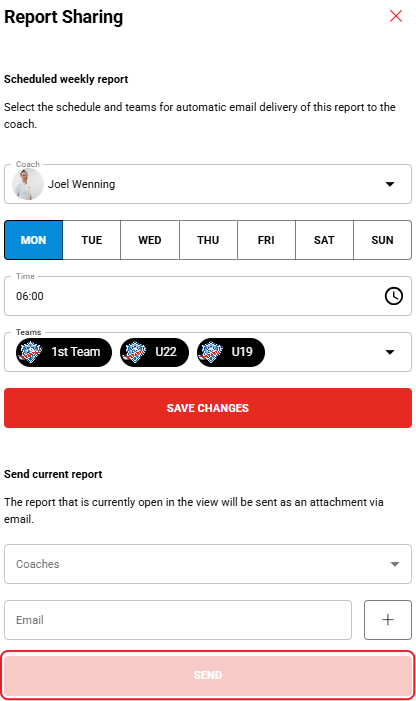
Screenshot: the Scheduled weekly report section set to send the report every Monday at 06:00, with the SAVE CHANGES button.
Result
The selected coach receives the Training Summary Report by email on the selected weekdays and time.
Need more help? Ask the Customer Agent chat on this page or email support@firstbeat.com.