
This article explains how coaches update the firmware of the Firstbeat Sports Sensor with the Firstbeat Sports: Coach app. A firmware update takes about 1 minute per Sensor.
Before you start
- Use the latest version of the Coach app and download all measurements from the Sensor.
- Keep the Sensor close to the iPad or iPhone, and update each Sensor with only one device at a time.
- The Sensor battery is not low. A firmware update cannot start when the battery level is too low.
Steps
- Open Sensor Management. Open the Coach app and tap Sensors in the navigation bar to open the Sensor management view. A blue circle with a number on the Sensors icon shows how many Sensors within range can be updated.
- Select the Sensor. In the Sensor management view, find the athlete's Sensor and tap the blue microchip icon next to the Sensor. A grey microchip icon means that the Sensor already has the latest firmware.
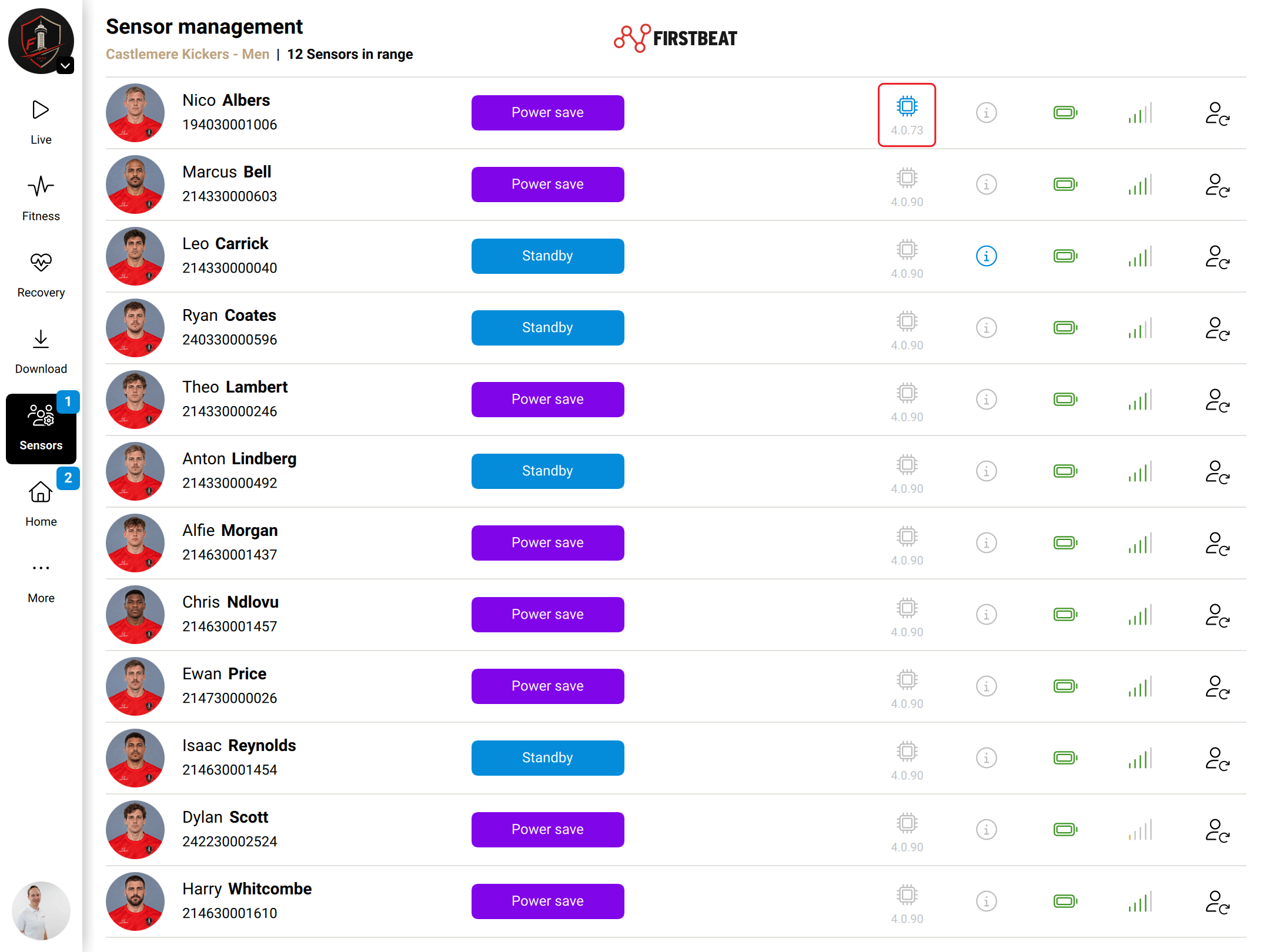
Screenshot: the Sensor management view with the update count on the Sensors icon and a blue microchip icon in the row of a Sensor that can be updated.
- Update. Tap Update and wait for the process to finish.
Result
The microchip icon next to the Sensor is grey, which means that the Sensor has the latest firmware.
Need more help? Ask the Customer Agent chat on this page or email support@firstbeat.com.