
This article explains how to delete a measurement in Firstbeat Sports Cloud. A deleted measurement is archived, not permanently deleted, so it can be restored if necessary.
Steps
- Open the measurements list. Log in to Sports Cloud at https://sports.firstbeat.com, select the day and click the Measurements button under the Daily Chart.
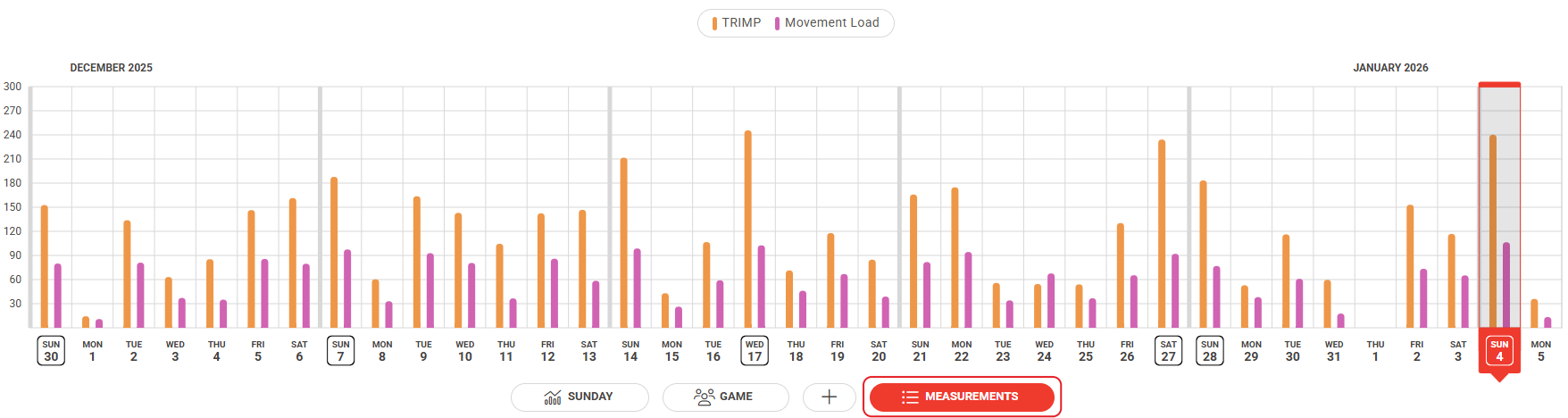
Screenshot: the Daily Chart with the Measurements button below the chart.
Note: You can filter the measurements by team, group/position or athlete in the top-right corner.
- Open Measurement settings. Click the three dots at the right end of the measurement row and click Measurement settings.
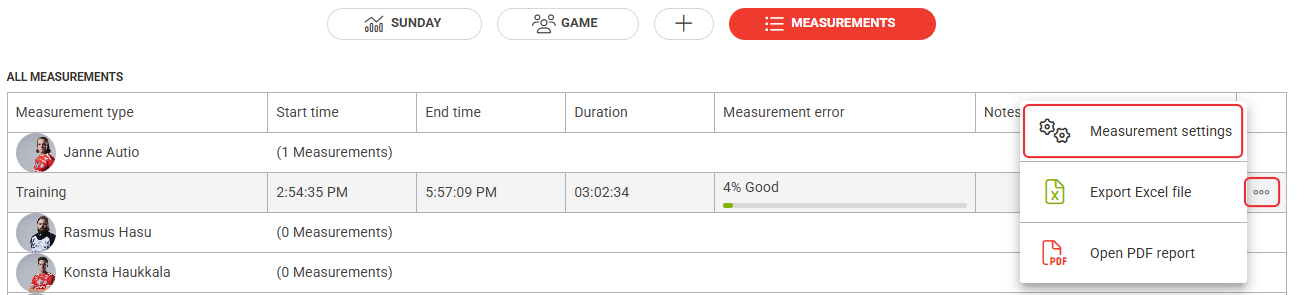
Screenshot: the All measurements list with the three-dot menu open and the Measurement settings option.
- Delete the measurement. Click the trash bin icon (Delete Measurement) in the top-right corner of the dialog and click Delete to confirm.
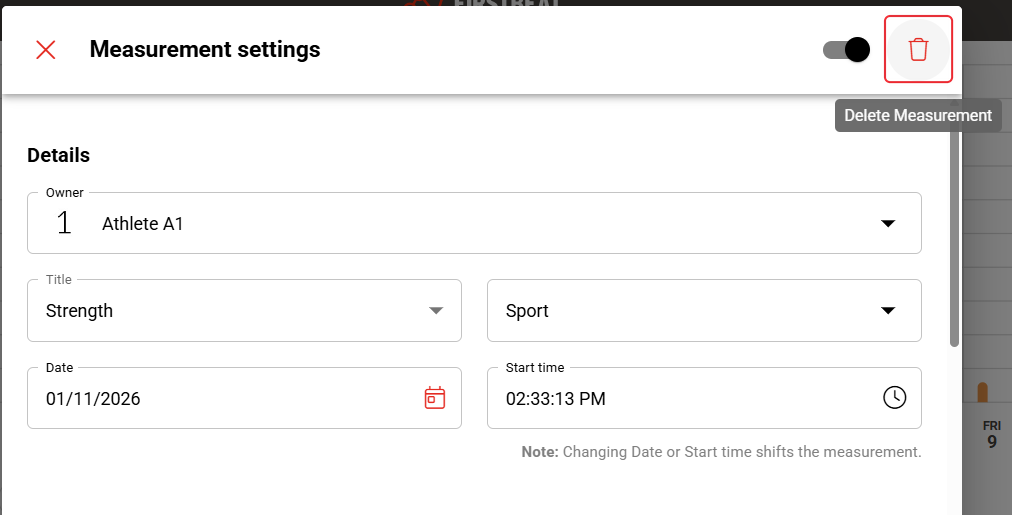
Screenshot: the trash bin icon with the Delete Measurement tooltip in the top-right corner of the Measurement settings dialog.
Result
The measurement is removed from the athlete's profile and no longer appears in Sports Cloud. To restore a deleted measurement, contact Firstbeat Support.
Need more help? Ask the Customer Agent chat on this page or email support@firstbeat.com.