
This article explains how coaches can add a new athlete profile in Firstbeat Sports Cloud.
Before you start
- If the athlete will use the Firstbeat Sports: Athlete app, you need the athlete's valid email address. Athlete app login credentials can only be sent to an athlete with a valid email address.
- A coach with limited access rights can add athletes only to the teams the coach has access to.
Steps
- Open Athlete management. Log in to Sports Cloud at https://sports.firstbeat.com, select MENU > TEAM MANAGEMENT in the top-left corner and click Athlete management at the bottom of the screen.
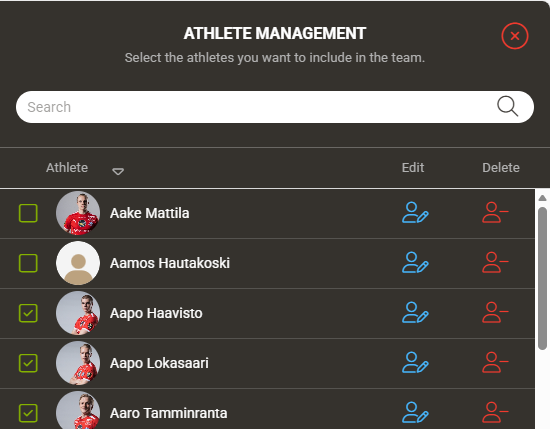
Screenshot: the ATHLETE MANAGEMENT panel with the Search box and the athlete list.
- Enter the athlete's details. Click Add New Athlete at the bottom of the panel on the right. Under REQUIRED INFORMATION, enter the First name, Last name, Date of birth, Gender, Height, Weight and Max. Heart rate (bpm), and enter the E-mail under LOGIN INFORMATION if the athlete will use the Athlete app.
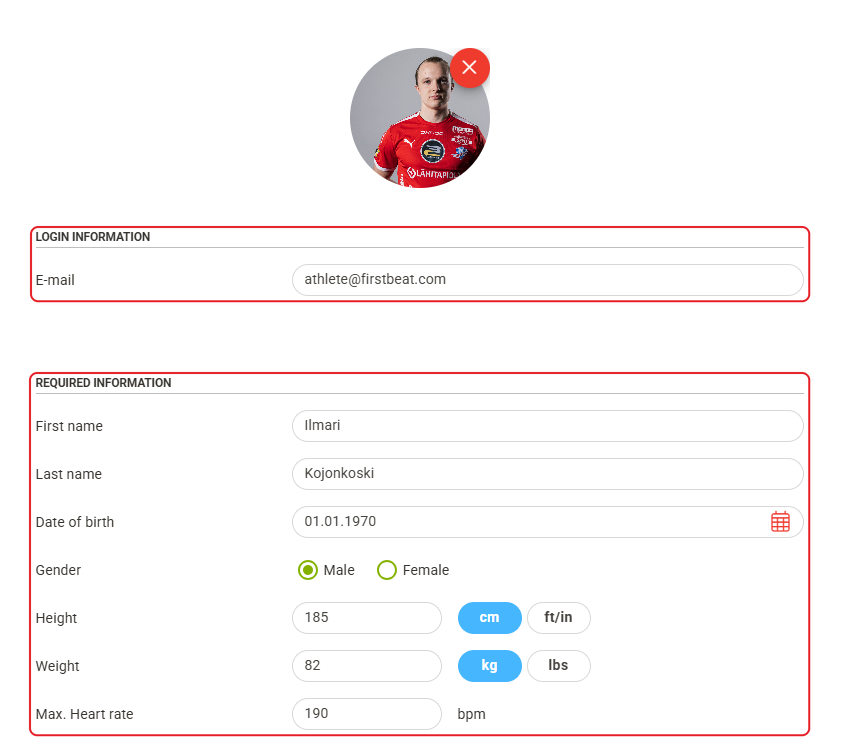
Screenshot: the new athlete form with the LOGIN INFORMATION and REQUIRED INFORMATION fields.
- Save. Click Save in the top-right corner. Add each athlete the same way, one at a time.
Result
The new athlete profile appears in the athlete list in Athlete management.
Need more help? Ask the Customer Agent chat on this page or email support@firstbeat.com.