
This article explains how coaches compare live data in the Bar Chart view of the Firstbeat Sports: Coach app with typical values for a sport or with each athlete's previous sessions.
Option 1: Compare with typical values for a sport
- Open the Bar Chart view. Open Live view, select Bars in the left-hand navigation and choose a metric in the Metric panel.
- Turn on the comparison. In the Compare panel, select On, then Edit.
- Choose the typical values. Under Typical values of selected sport, choose a load level (Low load, Moderate load, High load or Game load). Then select the sport and the female or male reference group.
- Return to the Bar Chart view. The reference values appear as a highlighted range behind the athletes' current values.
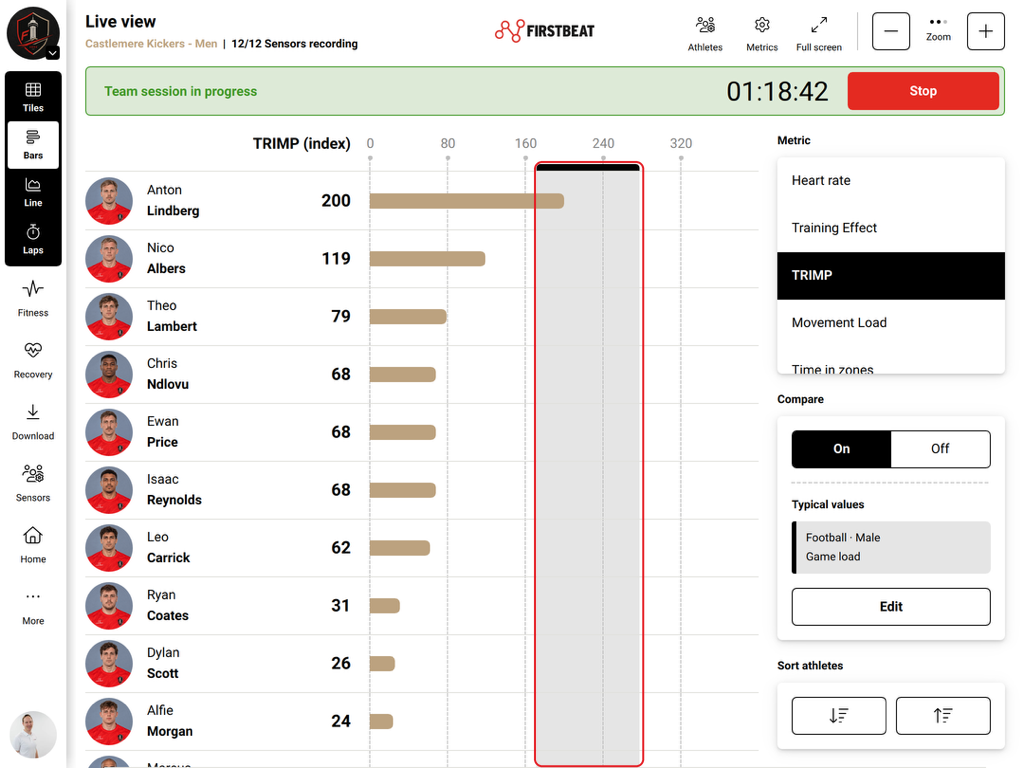
Screenshot: training impulse (TRIMP) values compared with the typical Football, Male, Game load reference range.
Option 2: Compare with athlete history
- Open the Bar Chart view. Open Live view, select Bars in the left-hand navigation and choose a metric in the Metric panel.
- Turn on the comparison. In the Compare panel, select On, then Edit.
- Choose the history. Under History per athlete, choose Show all session data or Show specific session data. For specific session data, select the session title, such as GD-2 or Game, and narrow the comparison with the date range and session-type filters where available.
⚠ CHECK – not verified: The example session titles "GD-2" and "Game" are not in the text of original 46792085462417 (they may come from a screenshot that could not be checked).
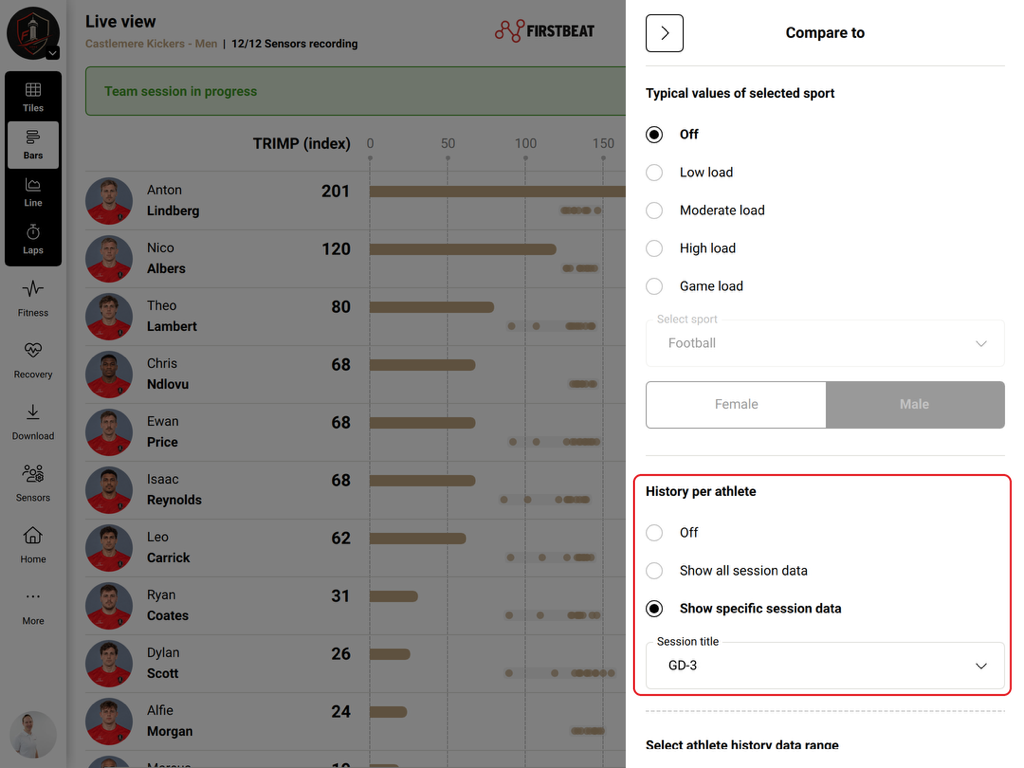
Screenshot: the Compare to panel with athlete history set to a specific session title.
- Return to the Bar Chart view. Dots next to each athlete's bar show the values from the selected previous sessions.
Result
The Compare panel shows the active comparison. To remove the comparison, switch Compare to Off.
Need more help? Ask the Customer Agent chat on this page or email support@firstbeat.com.